
Convertfile Plus

Image Editing & Design Tools

how to reduce image file size without making it blurry
Image Editing & Design Tools

How to Reduce Image File Size Without Making It Blurry

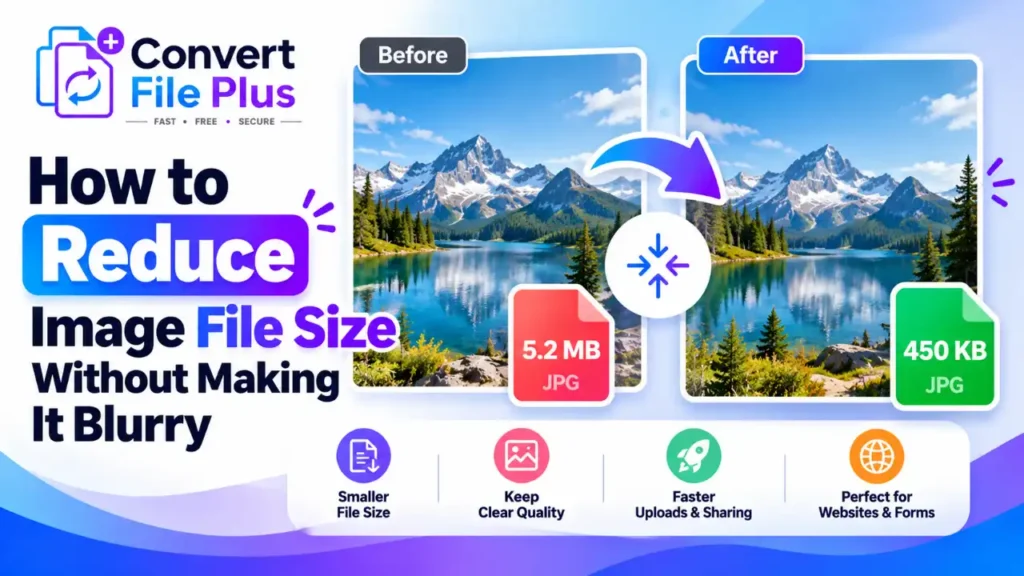
Choose a suitable format, compress gradually instead of jumping to the lowest setting, keep enough pixel dimensions for how the image will be used, and inspect the result before you use it. Done in that order, many images shrink noticeably with little visible change, though how much depends on the image itself. A smaller image file is useful only if it still looks clear where you plan to use it. If compression makes a product photo look soft, screenshot text difficult to read, or a face lose detail, the settings may be too aggressive – or the image dimensions may be too small. Here is how to reduce file size while keeping the details that matter. Why Do Images Become Blurry After Compression? Reducing file size does not automatically blur an image. Blur comes from how the reduction is done. How to Reduce Image File Size Without Losing Visible Quality “Without losing visible quality” is a realistic goal for many images, not a guarantee for all of them. The aim is a change you cannot notice at the size people will actually view the image. 1. Choose the right image format The right format depends on the image: Changing format alone does not guarantee a smaller or better file. Converting an already compressed JPG into another lossy format applies a second round of loss. 2. Adjust compression gradually Lossless compression keeps every pixel but usually saves less. Lossy compression saves more by discarding detail. web.dev explains that if a tool lets you set an output quality, it is using lossy compression, and that lossy tools usually offer much greater savings. Lower the quality in small steps and compare the results after each adjustment. If you notice distracting artifacts, smeared textures, or fuzzy text, move back to a higher-quality setting. The right balance depends on the image and where it will be viewed, so avoid relying on one fixed quality percentage. Check fine details, edges, smooth gradients, and text before choosing the final file. 3. Resize dimensions only when necessary An image much larger than its display size may contain more pixels than the page needs. As web.dev explains, serving appropriately sized images can reduce unnecessary downloads. For example, if a photo will appear around 800 pixels wide, an appropriately sized version may be sufficient—but allow for high-density screens, responsive layouts, and any zoom or enlargement feature before reducing the original dimensions. But don’t go below what the image needs. Enlarging a small image later cannot restore detail, and a high-resolution screen or a zoom feature needs more pixels. 4. Start with the best available original Compress from the original, not from a copy that has already been compressed. Keep an untouched original so you can try different settings without stacking losses. 5. Compare the result before using it View the original and the compressed version at the same display size. Check text, faces, edges, fine textures, and transparency where it applies. If the compressed file looks worse, use a higher quality setting, even if the file ends up a little larger. Which Image Format Should You Use for Smaller File Sizes? Image format Common use Compression and quality considerations JPG/JPEG Photographs and everyday sharing Lossy; the quality setting trades detail for size. No transparency. Can show artifacts around text and sharp edges. PNG Screenshots, sharp graphics, transparent images Lossless apart from optional color-palette reduction, so quality sliders do not shrink it the way they shrink JPG. Photographs can produce large files. WebP Web images Lossy and lossless modes, plus transparency. MDN reports lossy WebP averages 25 to 35 percent smaller than comparable JPG. Some older software may not open it. AVIF Web images where size matters most MDN says it generally compresses better than WebP. Encoding is slower, it does not support progressive rendering, and older browsers need a fallback. Actual file size depends on the image content, encoder settings, dimensions, and quality target. Treat the savings above as averages, not promises. How to Compress an Image Without Making It Blurry: Step-by-Step The exact controls vary by tool, so follow the options your tool actually offers. Want to reduce your image file size without installing software? Try the image size reduction tool on ConvertFilePlus, then check the result before using it. How to Reduce Image Size for Different Purposes Common Mistakes That Make Compressed Images Look Worse Frequently Asked Questions Before You Save the Final File Reducing image file size without noticeable blur comes down to choosing a suitable format, avoiding excessive compression, keeping enough pixels for the intended use, and checking the result before sharing or uploading it. Always keep the original so you can try again if the compressed version loses important detail. Ready to reduce an image file’s size? Try the image size reduction tool on ConvertFilePlus and check the output before using it. Sources and References
how to resize a photo for passport
Image Editing & Design Tools

How to Resize a Photo for Passport-Size Requirements

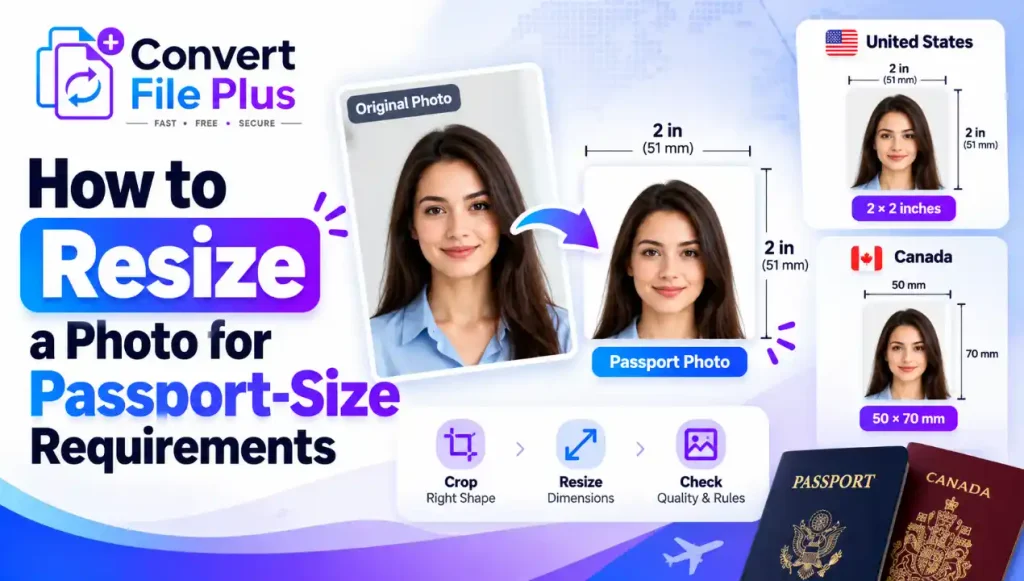
Start with your country’s official rules, because there is no single passport photo size. A US passport photo is 2 × 2 inches (51 × 51 mm). Canada asks for 50 × 70 mm. Then check the photo’s dimensions, head size, background, and sharpness against your country’s official requirements. Crop or resize the image only if your application allows those edits. Resizing changes an image’s dimensions, but it cannot fix poor lighting, blur, an unsuitable background, or incorrect head positioning. Some passport authorities also restrict digital editing. Canada’s online passport-renewal instructions require an unaltered image file saved directly from the camera. For U.S. online renewal, use the crop and repositioning tools provided inside the application rather than assuming that edits made in a separate app are acceptable. “Requirements checked on October 13, 2026. Confirm the official instructions again before applying, because requirements can change.” Check Your Country’s Passport Photo Requirements First Passport photo specifications differ by country and by application type. A paper application, an in-person application, and an online renewal can each have different rules, so match your photo to the exact route you are using. Country / application Printed photo Digital image requirements Official source United States, paper or in-person 2 × 2 in (51 × 51 mm); head 1 to 1⅜ in (25 to 35 mm), chin to top of head Not applicable State Department: Passport Photos United States, online renewal Not applicable JPG, JPEG, PNG, HEIC or HEIF; 54 KB to 10 MB; bottom of frame at the edge of the shoulders; crop and reposition inside the application. No pixel dimensions are listed on the page. State Department: Uploading a Digital Photo Canada, in person or by mail 50 × 70 mm (2 × 2¾ in); face 31 to 36 mm, chin to crown Not applicable Canada.ca: Passport photo requirements Canada, online renewal Not applicable JPEG or JPG; portrait orientation with a 2:3 width-to-height ratio; at least 1,200 × 1,800 pixels and no larger than 3,000 × 4,500 pixels (width × height); file size 200 KB to 5 MB; chin-to-crown measurement 45% to 50% of photo height; unaltered file saved directly from the camera. Canada.ca: Passport photo requirements Digital-upload specifications can differ from printed ones, as the Canadian rows show. Other countries have their own rules, so check the passport authority’s website before you edit anything. How to Resize a Photo for Passport Requirements Important: Do not edit a passport photo until you have checked whether your passport authority allows it. Canada’s online-renewal instructions require an unaltered image saved directly from the camera and treat cropping or other software changes as alteration. For a Canadian online renewal, ask your photographer for a file that meets the official requirements instead of cropping or resizing it yourself. For U.S. online renewal, use the crop and reposition controls inside the official application. For other application types, follow the relevant official instructions.  Copy after text Passport Photo Size in Pixels, Inches, and Millimeters Physical size and pixel size describe different things. Physical size (inches or millimeters) is how large the photo appears on paper. Pixel dimensions are the number of pixels along the width and height of the image file, which Adobe describes as the image size. A useful conversion: one inch equals 25.4 mm, so 2 inches is about 51 mm. Pixels only connect to print size once a resolution is chosen. As an illustration only, a 2-inch print at 300 pixels per inch needs 600 pixels. That 300 figure is a common printing assumption, not a State Department rule. What each authority actually states: You may find commercial websites that recommend other pixel dimensions or file-size limits. Do not treat those figures as official requirements unless the relevant passport authority confirms them for your exact application. Copy DPI vs PPI: What Matters for Passport Photos? The terms get mixed up, so here is the plain version. Adobe explains that changing width and height without resampling changes the resolution but not the total pixel count. Resampling adds or removes pixels, and it affects image quality. In practice, typing a bigger DPI number into a file’s properties does not create new detail. A photo with too few pixels stays soft, so start with a larger original rather than enlarging a small one. Common Passport Photo Mistakes That Can Lead to Rejection Correct dimensions are only one part of a compliant passport photo. A photo can meet the size requirement and still fail another rule. Copy A photo can have perfect dimensions and still fail on any of these. Can You Resize a Passport Photo Online? An online image tool can be convenient when the application permits editing. It may let you crop an image, adjust its dimensions, or export it in a supported format. But convenience does not mean the result will be accepted by a passport authority. The limits matter more than the convenience: Check the final result against the official page every time. How to Check Your Passport Photo Before Submitting It Final Checklist Before You Submit Requirements change, so read your passport authority’s current page again just before you apply. Frequently Asked Questions

Scroll to Top