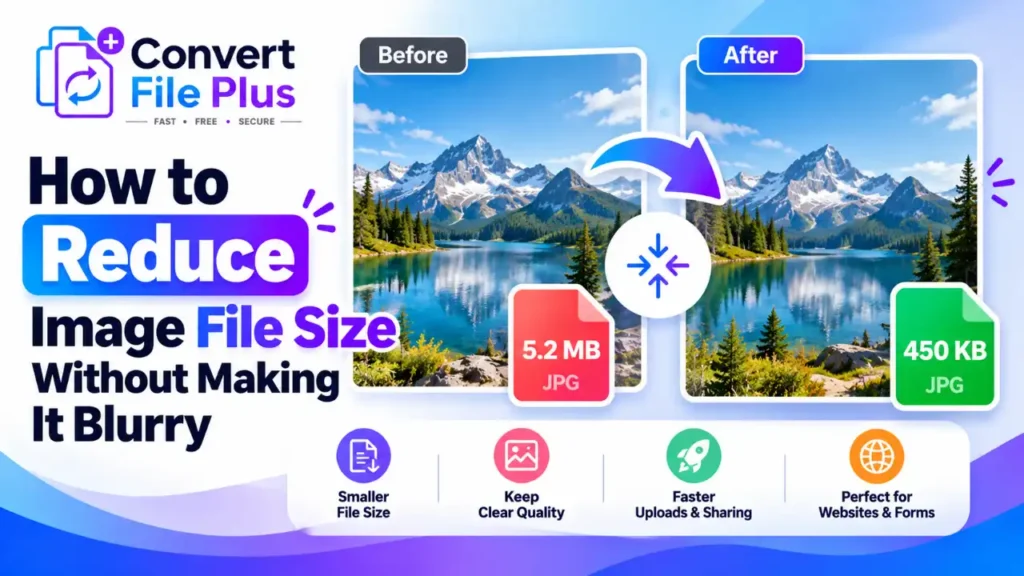
Choose a suitable format, compress gradually instead of jumping to the lowest setting, keep enough pixel dimensions for how the image will be used, and inspect the result before you use it. Done in that order, many images shrink noticeably with little visible change, though how much depends on the image itself.
A smaller image file is useful only if it still looks clear where you plan to use it. If compression makes a product photo look soft, screenshot text difficult to read, or a face lose detail, the settings may be too aggressive – or the image dimensions may be too small. Here is how to reduce file size while keeping the details that matter.
Why Do Images Become Blurry After Compression?
Reducing file size does not automatically blur an image. Blur comes from how the reduction is done.
- Too much lossy compression. Lossy compression discards some image data to save space. Push it too far and fine texture turns smeary. A fabric product photo can lose its weave, and small text in a screenshot can develop fuzzy edges. MDN notes that lossy compression can give unsatisfactory results for content that needs sharpness, such as diagrams or charts.
- Dimensions that are too small. Pixel dimensions are the image’s width and height in pixels. File size is how many bytes the file takes up. Shrinking dimensions cuts bytes, but enlarging a small image later looks jagged and blurry, as web.dev explains.
- Repeated saving. Each lossy save can discard more detail, so re-compressing a compressed copy compounds the loss.
- The wrong format. A screenshot saved as a heavily compressed JPG is a common example.
- A weak original. Compression cannot add detail that was never captured.
- Mixing up file size and display size. A very wide photo shown small on a page carries pixels nobody sees. That is a dimensions problem, not a quality problem.
How to Reduce Image File Size Without Losing Visible Quality
“Without losing visible quality” is a realistic goal for many images, not a guarantee for all of them. The aim is a change you cannot notice at the size people will actually view the image.
1. Choose the right image format
The right format depends on the image:
- JPG/JPEG suits photographs. MDN describes it as the most widely used lossy format for still images.
- PNG is often a good choice for screenshots, sharp graphics, and images that need transparency. Its standard lossless compression preserves the image data, making it useful when text and edges need to remain sharp. However, converting an already blurry image to PNG will not restore lost detail.
- WebP is useful for web images. It supports lossy and lossless compression and transparency, though some older software may not open it.
- AVIF can compress very efficiently, but support is newer, so keep a fallback for older browsers and apps.
Changing format alone does not guarantee a smaller or better file. Converting an already compressed JPG into another lossy format applies a second round of loss.
2. Adjust compression gradually
Lossless compression keeps every pixel but usually saves less. Lossy compression saves more by discarding detail. web.dev explains that if a tool lets you set an output quality, it is using lossy compression, and that lossy tools usually offer much greater savings.
Lower the quality in small steps and compare the results after each adjustment. If you notice distracting artifacts, smeared textures, or fuzzy text, move back to a higher-quality setting. The right balance depends on the image and where it will be viewed, so avoid relying on one fixed quality percentage. Check fine details, edges, smooth gradients, and text before choosing the final file.
3. Resize dimensions only when necessary
An image much larger than its display size may contain more pixels than the page needs. As web.dev explains, serving appropriately sized images can reduce unnecessary downloads. For example, if a photo will appear around 800 pixels wide, an appropriately sized version may be sufficient—but allow for high-density screens, responsive layouts, and any zoom or enlargement feature before reducing the original dimensions.
But don’t go below what the image needs. Enlarging a small image later cannot restore detail, and a high-resolution screen or a zoom feature needs more pixels.
4. Start with the best available original
Compress from the original, not from a copy that has already been compressed. Keep an untouched original so you can try different settings without stacking losses.
5. Compare the result before using it
View the original and the compressed version at the same display size. Check text, faces, edges, fine textures, and transparency where it applies. If the compressed file looks worse, use a higher quality setting, even if the file ends up a little larger.
Which Image Format Should You Use for Smaller File Sizes?
| Image format | Common use | Compression and quality considerations |
|---|---|---|
| JPG/JPEG | Photographs and everyday sharing | Lossy; the quality setting trades detail for size. No transparency. Can show artifacts around text and sharp edges. |
| PNG | Screenshots, sharp graphics, transparent images | Lossless apart from optional color-palette reduction, so quality sliders do not shrink it the way they shrink JPG. Photographs can produce large files. |
| WebP | Web images | Lossy and lossless modes, plus transparency. MDN reports lossy WebP averages 25 to 35 percent smaller than comparable JPG. Some older software may not open it. |
| AVIF | Web images where size matters most | MDN says it generally compresses better than WebP. Encoding is slower, it does not support progressive rendering, and older browsers need a fallback. |
Actual file size depends on the image content, encoder settings, dimensions, and quality target. Treat the savings above as averages, not promises.
How to Compress an Image Without Making It Blurry: Step-by-Step
The exact controls vary by tool, so follow the options your tool actually offers.
- Select the original image. Use the least-processed copy you have.
- Note any file-size limit. If a form or platform sets one, write it down.
- Pick a suitable format. Photos often work well as JPG or WebP; screenshots and transparent graphics often suit PNG.
- Choose a compression tool. Use one that supports your image format and provides the controls you need.
- Compress the image. If quality or dimension settings are available, adjust them carefully rather than choosing the smallest possible output immediately.
- Preview or open the result. Compare it with the original at the same display size. If the tool does not provide a preview, open the downloaded file separately before using it
- Compare it with the original at the same display size, checking text, edges, and faces.
- Confirm the file meets the requirements for size, format, and dimensions before you upload it.
Want to reduce your image file size without installing software? Try the image size reduction tool on ConvertFilePlus, then check the result before using it.
How to Reduce Image Size for Different Purposes
- Website images: Images can affect how quickly the main content appears, and web.dev notes that unnecessary bytes can slow loading. Serve images at the size they are displayed, then test the page.
- Email attachments: Providers set their own attachment limits, so check yours. A photo meant only for viewing on screen rarely needs its full original dimensions.
- Online application forms: Follow the stated maximum size, dimensions, and format exactly. Some official forms also restrict editing, so read their rules before changing a photo.
- Product photos: Protect labels, texture, and color. Zoom in after compressing, especially if shoppers can enlarge the photo.
- Screenshots and documents: Small text is the first casualty. Prefer PNG, crop away unneeded areas, and compare readability at full size.
- Social media: Platform requirements change, so check the current ones. Platforms may process uploads again, so avoid squeezing an already compressed file further.
Common Mistakes That Make Compressed Images Look Worse
- Choosing the strongest compression just to hit the smallest size. Step down gradually and stop at the first visible change.
- Re-saving lossy images repeatedly. Edit from the original and export once.
- Cutting dimensions without checking display size. Match dimensions to how the image will be used.
- Using JPG for images that need transparency. Use PNG or another format that supports it.
- Compressing a blurry or low-resolution original and expecting it to improve. Compression cannot add clarity. Find a better source.
- Judging quality only by file size. Inspect the image itself.
- Ignoring platform upload requirements. Check the destination’s limits before you start.
Frequently Asked Questions
Before You Save the Final File
Reducing image file size without noticeable blur comes down to choosing a suitable format, avoiding excessive compression, keeping enough pixels for the intended use, and checking the result before sharing or uploading it. Always keep the original so you can try again if the compressed version loses important detail.
Ready to reduce an image file’s size? Try the image size reduction tool on ConvertFilePlus and check the output before using it.
Sources and References
- MDN Web Docs, Image file type and format guide: https://developer.mozilla.org/en-US/docs/Web/Media/Guides/Formats/Image_types
- web.dev, Choose the right image format: https://web.dev/articles/choose-the-right-image-format
- web.dev, Use Imagemin to compress images: https://web.dev/use-imagemin-to-compress-images
- web.dev, Serve images with correct dimensions: https://web.dev/articles/serve-images-with-correct-dimensions

- How Image Compression Can Help Website Performance - October 18, 2026
- How Does an AI Image Upscaler Improve Image Resolution? - October 17, 2026
- How to Compress Images for WordPress Without Losing Quality Free - October 17, 2026