
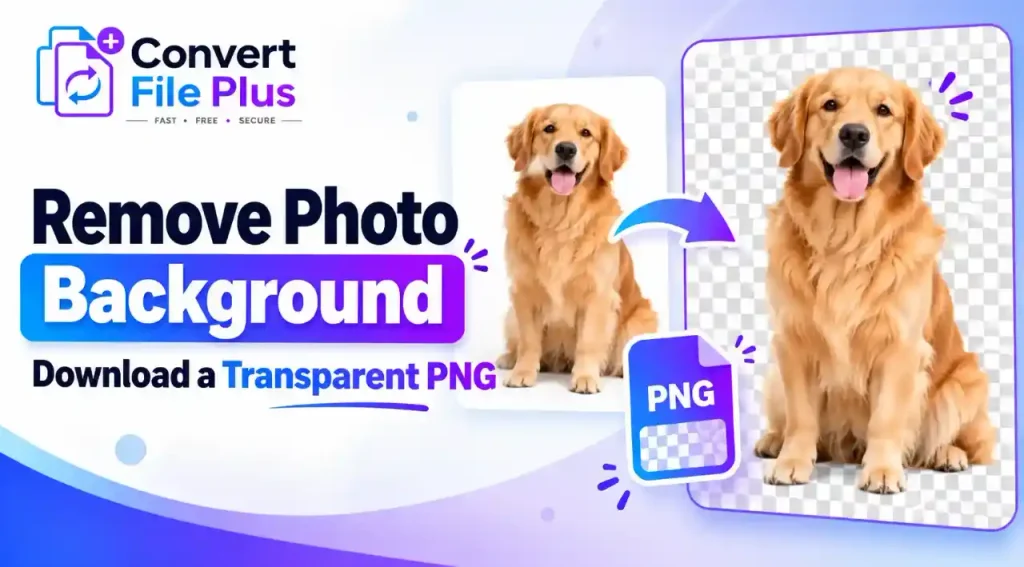
How to Remove a Photo Background and Download a Transparent PNG
You removed the background, downloaded the file, dropped it into your design, and a white rectangle appeared around your subject. It is a common and frustrating result. The short answer: removing a background and exporting a transparent file are two separate steps. Remove the background in a background-removal tool, then export as a PNG with transparency preserved. Finally, reopen the downloaded file to confirm it is truly transparent. This guide shows you how, and how to fix it when something goes wrong. What Does a Transparent PNG Actually Mean? Transparency allows the background behind an image to show through. White pixels contain white color, while transparent pixels allow the underlying background to remain visible. PNG supports transparency through an alpha channel, which stores how opaque each pixel is. However, not every PNG has a transparent background; the image must actually contain transparent pixels. PNG matters because it supports an alpha channel, the extra data that stores how opaque each pixel is. The PNG specification and MDN’s image format guide both describe PNG as a format that can carry this information. That does not make every PNG transparent. A PNG with a solid white background is still a white-background image. The file must actually contain transparent pixels. Editors usually show transparency as a gray-and-white checkerboard. The checkerboard is only a visual signal inside the software. It is not part of your image. Some viewers, previews, and web pages show transparent areas as white because they place the image on a white canvas. The file may be fine; the display is not. How to Remove a Photo Background and Save It as a Transparent PNG The exact buttons differ from tool to tool, so look for the equivalent option in whichever editor you use. Why Is My Transparent PNG Showing a White Background? A white background does not always mean the export failed. Work through these causes in order. The quickest diagnosis is to open the downloaded file over a contrasting color. If the subject sits cleanly on it, your PNG is transparent and the problem is the viewer. How to Check Whether Your PNG Is Really Transparent A quick check takes under a minute and prevents embarrassing surprises later. A visual check is a good first test. If the image is going on a printed item, a store listing, or a client project, test it in the actual application where it will be used. How to Get Cleaner Background Removal Results Automatic tools are impressive, but results depend heavily on the photo. Better input gives better output. There is also a trade-off. Cutting away every trace of background can leave harsh, artificial edges, especially around hair. A slightly softer edge often looks more natural on a new background. No tool gives a perfect result on every photo, so plan to inspect each one. PNG vs JPG: Which Format Should You Download? PNG JPG Transparency Supported Not supported Typical uses Logos, product cutouts, graphics, images placed over other designs Ordinary photographs without transparency File size Can be larger for detailed photos Often smaller for photographs Logos Generally a good fit Poor fit when a transparent background is needed Product cutouts Generally a good fit Only if a solid background is acceptable Ordinary photos Works, but files may be bigger Common choice Choose PNG when you need transparent pixels. Choose JPG when the image is an ordinary photo that does not need transparency and file size matters. Neither format is automatically better; the right choice depends on the job. Common Mistakes to Avoid Final Checklist Before Using Your Transparent PNG Removing a background deletes the unwanted pixels. Exporting a transparent PNG makes sure the empty space stays empty. You need both, and checking the downloaded file is the step that proves it. Read this Blog Also Difference Between Image Resolution and Image Size: Complete Guide (2026)