
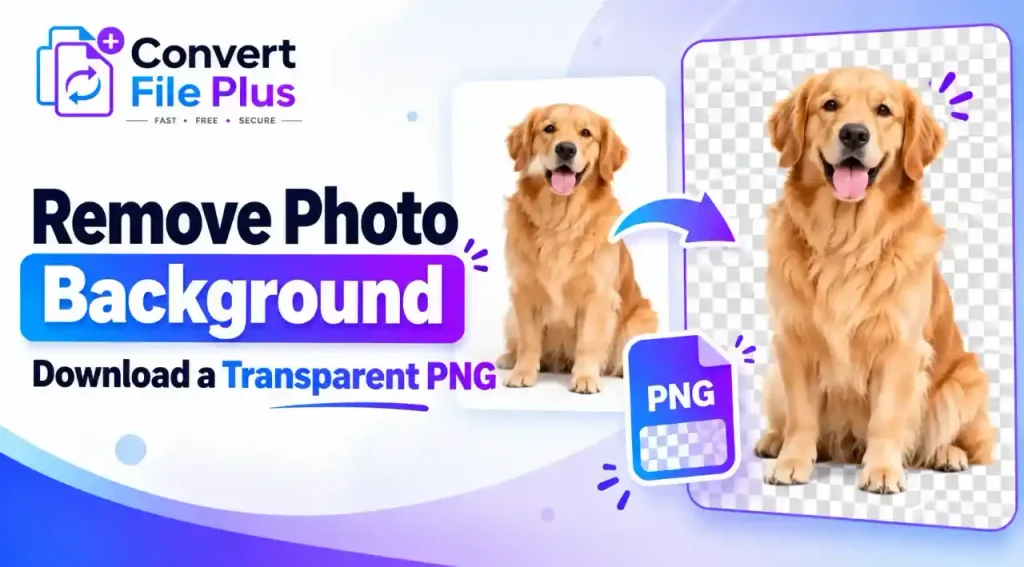
You removed the background, downloaded the file, dropped it into your design, and a white rectangle appeared around your subject. It is a common and frustrating result.
The short answer: removing a background and exporting a transparent file are two separate steps. Remove the background in a background-removal tool, then export as a PNG with transparency preserved. Finally, reopen the downloaded file to confirm it is truly transparent.
This guide shows you how, and how to fix it when something goes wrong.
What Does a Transparent PNG Actually Mean?
Transparency allows the background behind an image to show through. White pixels contain white color, while transparent pixels allow the underlying background to remain visible. PNG supports transparency through an alpha channel, which stores how opaque each pixel is. However, not every PNG has a transparent background; the image must actually contain transparent pixels.
PNG matters because it supports an alpha channel, the extra data that stores how opaque each pixel is. The PNG specification and MDN’s image format guide both describe PNG as a format that can carry this information.
That does not make every PNG transparent. A PNG with a solid white background is still a white-background image. The file must actually contain transparent pixels.
Editors usually show transparency as a gray-and-white checkerboard. The checkerboard is only a visual signal inside the software. It is not part of your image.
Some viewers, previews, and web pages show transparent areas as white because they place the image on a white canvas. The file may be fine; the display is not.
How to Remove a Photo Background and Save It as a Transparent PNG
The exact buttons differ from tool to tool, so look for the equivalent option in whichever editor you use.
- Choose a suitable photo. Pick an image where the subject is sharp and clearly separated from the background. Higher resolution gives the tool more edge detail to work with.
- Open it in a background-removal tool. Use an online remover or an editor with a background-removal feature, then upload your image.
- Let the background process. Most tools detect the subject automatically. Wait until the result finishes before judging it.
- Inspect the edges. Zoom in around hair, corners, and thin parts. If the tool offers a brush or refine option, use it to restore missing areas or erase leftover background.
- Confirm the background is transparent. Look for a checkerboard pattern in an editor that displays transparency. If the image appears white, place it over a dark or colored background to test it. A white preview does not always mean the background is still part of the image.
- Choose PNG as the export format. Avoid JPG here, because it cannot store transparent pixels.
- Turn on the transparent-background option if your tool has one. Some tools handle this automatically; others make you choose it.
- Download and verify. Reopen the saved file in a second program, or place it over a dark or colored background. Do not rely only on the preview in the editing tool.
Why Is My Transparent PNG Showing a White Background?
A white background does not always mean the export failed. Work through these causes in order.
- The background was never fully removed. Zoom in. If the white is part of the picture, go back and remove it, using a refine or eraser tool if available.
- A white background layer was exported. Some editors keep a solid layer behind your subject. Hide or delete it, then export again.
- You downloaded a JPG. Check the file extension. A .jpg file cannot hold transparency, so the transparent area was flattened into a solid color. Export again as PNG.
- Your preview shows transparency as white. Open the file in an editor that displays a checkerboard, or place it on a dark background to test.
- The destination has its own white canvas. A slide, document page, or web template may be white. Change its background color and see whether your subject floats on top.
- The original had white pixels that were never removed. White product backdrops, shirts, or highlights can survive the process. Remove the leftover areas manually, or select by color if your editor allows it.
The quickest diagnosis is to open the downloaded file over a contrasting color. If the subject sits cleanly on it, your PNG is transparent and the problem is the viewer.
How to Check Whether Your PNG Is Really Transparent
A quick check takes under a minute and prevents embarrassing surprises later.
- Open the file in an editor that displays transparency, and look for a checkerboard behind the subject.
- Place the image over a dark or brightly colored background. White fringes or leftover patches become obvious.
- Zoom in on the edges to look for halos, jagged areas, or bits of the old background.
- Reopen the downloaded file itself, not just the preview in the tool where you edited it.
A visual check is a good first test. If the image is going on a printed item, a store listing, or a client project, test it in the actual application where it will be used.
How to Get Cleaner Background Removal Results
Automatic tools are impressive, but results depend heavily on the photo. Better input gives better output.
- Separation: A subject that contrasts with its background is easier to isolate than one in similar colors.
- Lighting and resolution: Even light and a sharp, high-resolution photo give cleaner edges than a dark, soft, or heavily compressed one.
- Difficult details: Hair, fur, transparent glass, fine jewelry, and motion blur are harder to cut out. Expect to review these areas closely.
- Shadows and reflections: Keep a soft shadow if the product should look grounded, or remove it for a clean cutout. Decide before you start.
- Manual refinement: If automatic results are rough, use a refine or brush option where one exists and fix problem areas by hand.
There is also a trade-off. Cutting away every trace of background can leave harsh, artificial edges, especially around hair. A slightly softer edge often looks more natural on a new background. No tool gives a perfect result on every photo, so plan to inspect each one.
PNG vs JPG: Which Format Should You Download?
| PNG | JPG | |
| Transparency | Supported | Not supported |
| Typical uses | Logos, product cutouts, graphics, images placed over other designs | Ordinary photographs without transparency |
| File size | Can be larger for detailed photos | Often smaller for photographs |
| Logos | Generally a good fit | Poor fit when a transparent background is needed |
| Product cutouts | Generally a good fit | Only if a solid background is acceptable |
| Ordinary photos | Works, but files may be bigger | Common choice |
Choose PNG when you need transparent pixels. Choose JPG when the image is an ordinary photo that does not need transparency and file size matters. Neither format is automatically better; the right choice depends on the job.
Common Mistakes to Avoid
- Downloading JPG when you need transparency. Check the format before you export.
- Leaving a background layer enabled. Hide or delete it so the exported file has nothing behind the subject.
- Treating a white preview as proof of failure. Test the file on a dark background first.
- Removing too much detail. Aggressive cutting around hair, fur, or thin objects makes subjects look chopped. Restore edges where needed.
- Exporting the wrong file. Keep clear names, such as product-original and product-transparent, so you do not upload the wrong version.
- Skipping inspection of the downloaded file. Always reopen the saved version.
- Assuming transparency survives every later step. Another editor, platform, or export setting may flatten the image onto a solid color, so re-check after each step.
Final Checklist Before Using Your Transparent PNG
- Background removed
- Subject edges checked
- Transparency confirmed (checkerboard or dark-background test)
- PNG selected
- Downloaded file reopened and tested
Removing a background deletes the unwanted pixels. Exporting a transparent PNG makes sure the empty space stays empty. You need both, and checking the downloaded file is the step that proves it.
Read this Blog Also
Difference Between Image Resolution and Image Size: Complete Guide (2026)

- How Image Compression Can Help Website Performance - October 18, 2026
- How Does an AI Image Upscaler Improve Image Resolution? - October 17, 2026
- How to Compress Images for WordPress Without Losing Quality Free - October 17, 2026