
Convertfile Plus

Image Compression & Optimization

Forest lake landscape with a loading-progress bar and a downward arrow suggesting a smaller image file.
Image Compression & Optimization

How Image Compression Can Help Website Performance

Image compression reduces image file sizes so browsers can download fewer bytes. This can help images load sooner, particularly when pages contain oversized files, but it will not solve every page-speed problem. This guide explains how to identify images worth optimizing, choose suitable compression methods, preserve visual quality, and determine whether other performance fixes are needed. How Image Compression Affects Page Speed Compression reduces an image’s file size, either by discarding some detail (lossy) or by encoding the same pixels more efficiently (lossless). A smaller file takes less time to download and uses less data. That matters because, as Google’s image guidance notes, images are often the largest contributor to page size, which can make pages slow and expensive to load. It also matters for a specific measure. LCP reports when the largest image, text block, or video in the viewport finishes rendering, and web.dev says that for most pages the LCP element is an image. Google recommends aiming for an LCP within 2.5 seconds of the page starting to load, and web.dev suggests checking it at the 75th percentile of page loads. What the Data Says: Helpful, but Not the Whole Story web.dev analyzed real Chrome page loads and reached a surprising result. Sending fewer bytes is almost always a win, and many sites still serve needlessly large images that basic compression would fix. But image download time was almost never the bottleneck. Among sites with poor LCP, the analysis reported median values at the 75th percentile of about 2,270 ms for Time to First Byte (TTFB), 1,290 ms for image load delay, and 350 ms for image download duration. TTFB measures how long the browser waits for the first server response; image load delay measures the time before the browser starts loading the image. In plain terms, compression shrinks only the download part. If your server responds slowly or the browser finds your main image late, a smaller file won’t fix that. Treat compression as a dependable improvement with limits, not a guaranteed score booster. These are medians across many sites from a 2024 analysis, not predictions for yours. How to Find Out Whether Your Images Are the Problem Measure before you spend time optimizing. Lab tests and real-user data can differ, so web.dev advises reading both rather than relying on one score. Which Compression Techniques Make the Biggest Difference Technique What it reduces Watch out for Lower the quality setting (lossy) File size, at the cost of some detail Blur or artifacts if pushed too far, so compare at full size Lossless optimization File size with identical pixels Savings are usually smaller than with lossy Modern formats (WebP, AVIF) Download size; Chrome says they compress better than JPEG and PNG Older browsers and iPhones before iOS 16 may not support them, so keep a fallback Right-sized, responsive images Wasted bytes from images larger than displayed Needs srcset or <picture> markup and a src fallback Video instead of large animated GIFs Very large GIF downloads Needs video markup; WebM does not work on iPhones before iOS 16 Chrome’s guidance says WebP is supported by all major browsers and AVIF by the latest versions of all major browsers. Actual savings vary with the image, the encoder, and the settings, so test your own files. Our image format guide explains the trade-offs. Step-by-Step: Compress Images Without Hurting Quality For individual images you want to compress before uploading, you can try the ConvertFilePlus Image Compressor and then check the result at full size. If you use WordPress, see our guide to compressing images for WordPress. What to Fix Alongside Compression Because load delay and server response often cost more time than the download, web.dev suggests these steps too: Google also notes that it does not index CSS images, so use HTML <img> elements for pictures you want it to find. Common Mistakes and Troubleshooting Frequently Asked Questions Conclusion Compress and right-size your images, because fewer bytes almost always help. Then check your LCP breakdown, because server response and late image discovery can cost more than the download. Treat compression as one dependable step in a broader performance check. Sources and References This guide is based on the sources above. It does not include our own performance tests.
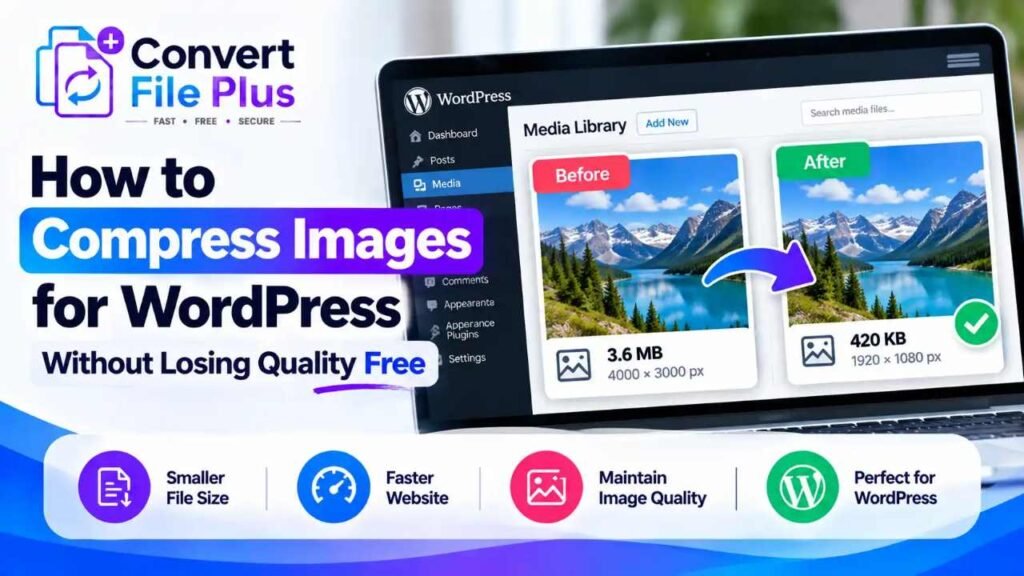
Before-and-after comparison of a compressed mountain landscape image in a WordPress Media Library, showing reduced file size while maintaining visual quality.
Image Compression & Optimization

How to Compress Images for WordPress Without Losing Quality Free

You can compress images for WordPress for free in two main ways: shrink them before you upload, or use a free image optimization plugin. Compress first if you add a few new images at a time. Use a plugin if you upload often or already have a large Media Library. The catch is quality. A smaller file is no help if a product photo turns soft, screenshot text becomes unreadable, or the image no longer fits your site. Here is how to choose a method and avoid the common mistakes. Why Should You Compress Images on WordPress? Large image files make a page download more data. web.dev notes that unnecessary bytes can lengthen load times, especially for images that are candidates for a page’s main content. Right-sized dimensions and sensible compression remove some of those bytes. WordPress helps, but only partly. By default, WordPress scales down sufficiently large uploaded images to a maximum dimension of 2,560 pixels and retains the original file. This limits image dimensions, but it does not replace image compression. Scaling is not the same as compression. Image compression is one part of performance. The results depend on image size, page design, hosting, caching, and delivery. It is not a complete speed fix, and it does not guarantee better search rankings. How to Compress WordPress Images for Free Method 1: Compress images before uploading. A free online compressor suits bloggers and site owners who handle a manageable number of images. You control the dimensions and quality before the file reaches WordPress, and you don’t need to install anything. Method 2: Use a WordPress image optimization plugin. A plugin is more convenient for ongoing uploads, because it can optimize new images as they arrive. Some plugins can also process images already in your Media Library. Neither method is universally better. The real distinction is between optimizing new images and processing the ones already stored in WordPress. The next section compares the two approaches. Online Image Compressor vs WordPress Plugin Consideration Free online compressor WordPress optimization plugin Where compression happens In the tool, which may run in your browser or on its servers On your site, or through the plugin’s own service, depending on the plugin Installation None Plugin install and setup Occasional images Convenient Often more than you need Repeated uploads You repeat the process each time Can optimize new uploads automatically Existing Media Library Not directly; you would re-upload images Possible with bulk tools, though free limits vary Free-plan limits May limit daily use or file size Free and paid features differ by plugin Privacy You upload files to a third party, so read its file-handling policy Check the plugin’s documentation and any service it uses Tools and plugins do not all work alike. Two verified examples show why. EWWW Image Optimizer’s WordPress.org page lists free unlimited optimization, a bulk optimizer, WebP conversion, resizing at upload, and local backups, while AVIF conversion is part of its paid tier. Smush’s page says WebP and AVIF delivery and automatic resizing are Pro features, and that the free version skips images over 5 MB. Step-by-Step: Compress Images Before Uploading to WordPress The controls vary by tool, so follow whatever options yours offers. For example, resizing a 4,000-pixel-wide photo to about 1,600 pixels for an 800-pixel content column leaves room for sharper high-density screens and usually cuts file size noticeably. The exact savings depend on the image. How to Compress Existing WordPress Media Library Images Compressing before upload only helps new images. Images already in the Media Library need a different workflow. Not every plugin can bulk-optimize existing images for free, so read the plugin’s own documentation before committing to one. How to Keep Image Quality While Reducing File Size Four terms get mixed up. Dimensions are an image’s width and height in pixels. File size is how many bytes it takes up. Compression is how the data is encoded. Quality is how the image looks. Our guide to image resolution and image size goes deeper. Common WordPress Image Compression Mistakes Frequently Asked QuestionsFrequently Asked Questions

Scroll to Top