
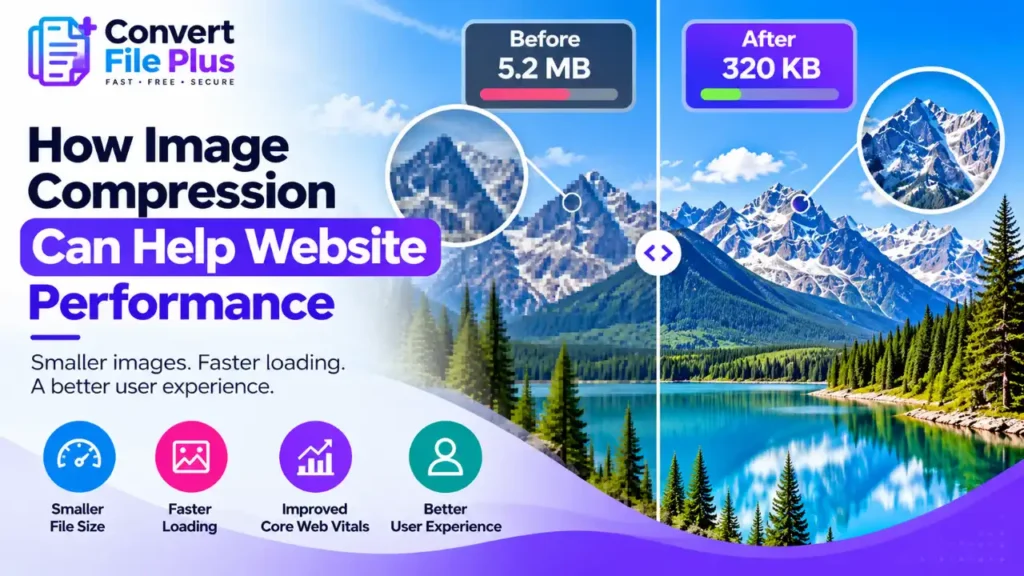
Image compression reduces image file sizes so browsers can download fewer bytes. This can help images load sooner, particularly when pages contain oversized files, but it will not solve every page-speed problem.
This guide explains how to identify images worth optimizing, choose suitable compression methods, preserve visual quality, and determine whether other performance fixes are needed.
How Image Compression Affects Page Speed
Compression reduces an image’s file size, either by discarding some detail (lossy) or by encoding the same pixels more efficiently (lossless). A smaller file takes less time to download and uses less data.
That matters because, as Google’s image guidance notes, images are often the largest contributor to page size, which can make pages slow and expensive to load. It also matters for a specific measure. LCP reports when the largest image, text block, or video in the viewport finishes rendering, and web.dev says that for most pages the LCP element is an image.
Google recommends aiming for an LCP within 2.5 seconds of the page starting to load, and web.dev suggests checking it at the 75th percentile of page loads.
What the Data Says: Helpful, but Not the Whole Story
web.dev analyzed real Chrome page loads and reached a surprising result. Sending fewer bytes is almost always a win, and many sites still serve needlessly large images that basic compression would fix. But image download time was almost never the bottleneck.
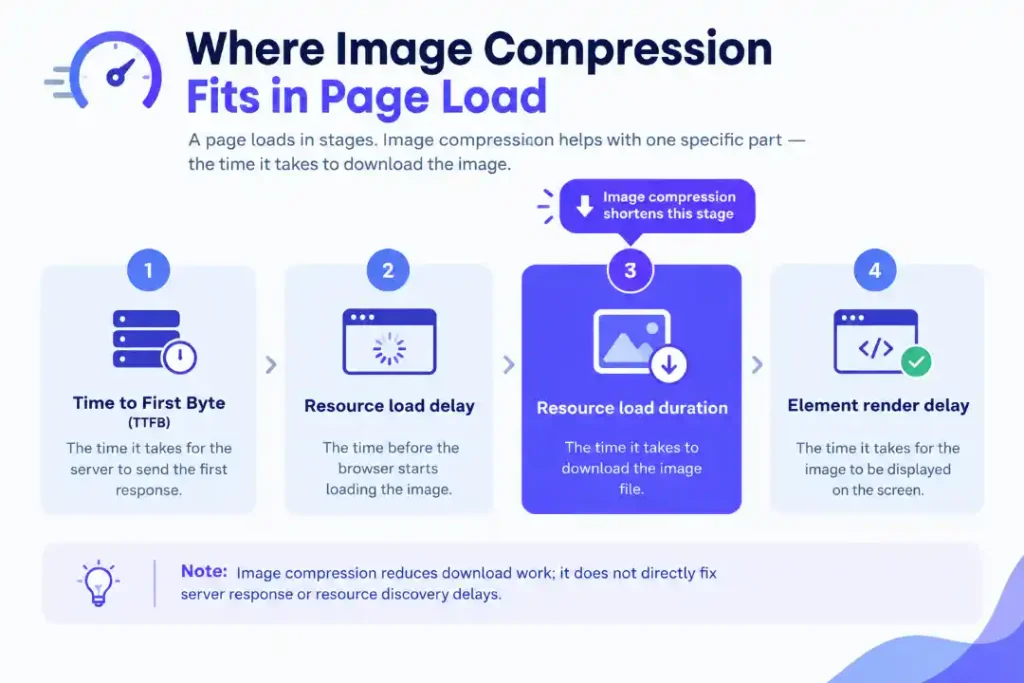
Among sites with poor LCP, the analysis reported median values at the 75th percentile of about 2,270 ms for Time to First Byte (TTFB), 1,290 ms for image load delay, and 350 ms for image download duration. TTFB measures how long the browser waits for the first server response; image load delay measures the time before the browser starts loading the image.
In plain terms, compression shrinks only the download part. If your server responds slowly or the browser finds your main image late, a smaller file won’t fix that. Treat compression as a dependable improvement with limits, not a guaranteed score booster. These are medians across many sites from a 2024 analysis, not predictions for yours.
How to Find Out Whether Your Images Are the Problem
Measure before you spend time optimizing.
- Test the page in PageSpeed Insights or Lighthouse, and check the Core Web Vitals report in Search Console for real-user data.
- Identify the LCP element. If it is an image, note its file size, format, and dimensions.
- Read the LCP breakdown. Lighthouse includes it in its “Largest Contentful Paint element” audit. If most of the time is TTFB or load delay, compression will help only a little.
- Check the image-delivery insight. Chrome’s Improve image delivery insight highlights images with unnecessarily large download sizes. It does not flag images with estimated savings under 4 KiB.
- Compare file dimensions with display size. An image far larger than the space it fills carries wasted bytes.
Lab tests and real-user data can differ, so web.dev advises reading both rather than relying on one score.
Which Compression Techniques Make the Biggest Difference
| Technique | What it reduces | Watch out for |
|---|---|---|
| Lower the quality setting (lossy) | File size, at the cost of some detail | Blur or artifacts if pushed too far, so compare at full size |
| Lossless optimization | File size with identical pixels | Savings are usually smaller than with lossy |
| Modern formats (WebP, AVIF) | Download size; Chrome says they compress better than JPEG and PNG | Older browsers and iPhones before iOS 16 may not support them, so keep a fallback |
| Right-sized, responsive images | Wasted bytes from images larger than displayed | Needs srcset or <picture> markup and a src fallback |
| Video instead of large animated GIFs | Very large GIF downloads | Needs video markup; WebM does not work on iPhones before iOS 16 |
Chrome’s guidance says WebP is supported by all major browsers and AVIF by the latest versions of all major browsers. Actual savings vary with the image, the encoder, and the settings, so test your own files. Our image format guide explains the trade-offs.
Step-by-Step: Compress Images Without Hurting Quality
- List your heaviest images. Start with the LCP image and the largest files.
- Keep the originals. Compress copies so you can redo them.
- Resize to the display size. For example, a 4,000-pixel-wide photo shown 800 pixels wide carries pixels visitors never see. Keep enough extra width for high-density screens. Our guide to image resolution and image size explains the terms.
- Choose a suitable format. Photos often suit JPG, WebP, or AVIF. Screenshots and transparent graphics often suit PNG.
- Compress in small steps. Stop at the first visible change, then go back one step.
- Compare at the same display size, checking text, edges, and faces. Our guide to reducing file size without blur shows how.
- Publish with responsive markup. Google recommends srcset or <picture> with a fallback src on the <img> element.
- Test the page again and compare the LCP breakdown with your earlier results.
For individual images you want to compress before uploading, you can try the ConvertFilePlus Image Compressor and then check the result at full size. If you use WordPress, see our guide to compressing images for WordPress.
What to Fix Alongside Compression
Because load delay and server response often cost more time than the download, web.dev suggests these steps too:
- Let the browser find the main image early. Use a standard <img> tag in the HTML so the browser’s preload scanner can discover it. A stylesheet that sets a background image, for example, delays discovery.
- Prioritize the likely LCP image. Add fetchpriority=”high” and avoid loading=”lazy” on it.
- Reduce TTFB. If visitors are far from your server, a CDN can bring content closer.
Google also notes that it does not index CSS images, so use HTML <img> elements for pictures you want it to find.
Common Mistakes and Troubleshooting
- Over-compressing images: Excessive compression can make images blurry or create visible artifacts. If quality drops, increase the quality setting and compress the original image again.
- Lazy-loading the main image: If the main image visible at the top of the page is loaded too late, it may delay Largest Contentful Paint (LCP). Avoid applying loading=”lazy” to the image expected to become LCP.
- Using WebP or AVIF without a fallback: Older browsers or devices may not support every image format. Where necessary, use a <picture> element with a compatible <img> fallback.
- Compressing an already compressed image repeatedly: Repeated lossy compression can reduce image quality. Keep the original file and create optimized copies from it.
- Changing too many settings at once: Adjust one setting at a time and compare the results at the same display size. This helps you identify which change improves file size without visibly damaging quality.
- Relying on a single speed test: A good Lighthouse score does not always reflect how every real visitor experiences your website. Compare lab results with available real-user data in PageSpeed Insights or Google Search Console.
Frequently Asked Questions
Conclusion
Compress and right-size your images, because fewer bytes almost always help. Then check your LCP breakdown, because server response and late image discovery can cost more than the download. Treat compression as one dependable step in a broader performance check.
Sources and References
- web.dev, Common misconceptions about how to optimize LCP: https://web.dev/blog/common-misconceptions-lcp
- web.dev, Largest Contentful Paint (LCP): https://web.dev/articles/lcp
- Google Search Central, Understanding Core Web Vitals and Google search results: https://developers.google.com/search/docs/appearance/core-web-vitals
- Google Search Central, Image SEO best practices: https://developers.google.com/search/docs/appearance/google-images
- Chrome for Developers, Improve image delivery: https://developer.chrome.com/docs/performance/insights/image-delivery
This guide is based on the sources above. It does not include our own performance tests.

- How Image Compression Can Help Website Performance - October 18, 2026
- How Does an AI Image Upscaler Improve Image Resolution? - October 17, 2026
- How to Compress Images for WordPress Without Losing Quality Free - October 17, 2026