
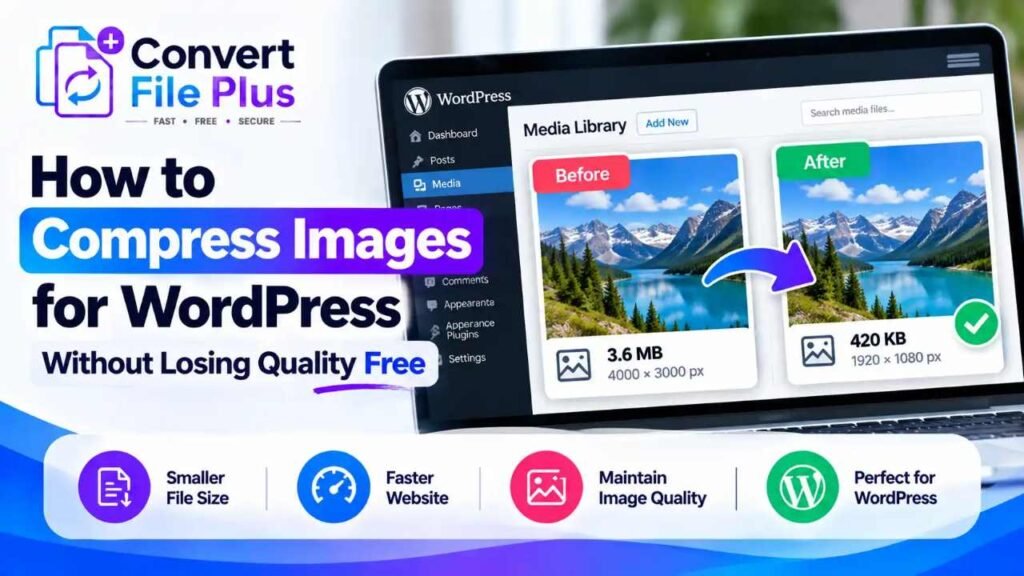
You can compress images for WordPress for free in two main ways: shrink them before you upload, or use a free image optimization plugin. Compress first if you add a few new images at a time. Use a plugin if you upload often or already have a large Media Library.
The catch is quality. A smaller file is no help if a product photo turns soft, screenshot text becomes unreadable, or the image no longer fits your site. Here is how to choose a method and avoid the common mistakes.
Why Should You Compress Images on WordPress?
Large image files make a page download more data. web.dev notes that unnecessary bytes can lengthen load times, especially for images that are candidates for a page’s main content. Right-sized dimensions and sensible compression remove some of those bytes.
WordPress helps, but only partly. By default, WordPress scales down sufficiently large uploaded images to a maximum dimension of 2,560 pixels and retains the original file. This limits image dimensions, but it does not replace image compression. Scaling is not the same as compression.
Image compression is one part of performance. The results depend on image size, page design, hosting, caching, and delivery. It is not a complete speed fix, and it does not guarantee better search rankings.
How to Compress WordPress Images for Free
Method 1: Compress images before uploading. A free online compressor suits bloggers and site owners who handle a manageable number of images. You control the dimensions and quality before the file reaches WordPress, and you don’t need to install anything.
Method 2: Use a WordPress image optimization plugin. A plugin is more convenient for ongoing uploads, because it can optimize new images as they arrive. Some plugins can also process images already in your Media Library.
Neither method is universally better. The real distinction is between optimizing new images and processing the ones already stored in WordPress. The next section compares the two approaches.
Online Image Compressor vs WordPress Plugin
| Consideration | Free online compressor | WordPress optimization plugin |
|---|---|---|
| Where compression happens | In the tool, which may run in your browser or on its servers | On your site, or through the plugin’s own service, depending on the plugin |
| Installation | None | Plugin install and setup |
| Occasional images | Convenient | Often more than you need |
| Repeated uploads | You repeat the process each time | Can optimize new uploads automatically |
| Existing Media Library | Not directly; you would re-upload images | Possible with bulk tools, though free limits vary |
| Free-plan limits | May limit daily use or file size | Free and paid features differ by plugin |
| Privacy | You upload files to a third party, so read its file-handling policy | Check the plugin’s documentation and any service it uses |
Tools and plugins do not all work alike. Two verified examples show why. EWWW Image Optimizer’s WordPress.org page lists free unlimited optimization, a bulk optimizer, WebP conversion, resizing at upload, and local backups, while AVIF conversion is part of its paid tier. Smush’s page says WebP and AVIF delivery and automatic resizing are Pro features, and that the free version skips images over 5 MB.
Step-by-Step: Compress Images Before Uploading to WordPress
The controls vary by tool, so follow whatever options yours offers.
- Select the original image. Use the least-processed copy you have.
- Check its pixel dimensions. If your content area displays images at 800 pixels wide, a 4,000-pixel-wide photo carries pixels visitors never see.
- Choose a suitable format. Photos often suit JPG or WebP. Screenshots and transparent graphics often suit PNG.
- Use a free compression tool that supports your format.
- Adjust compression gradually, if the tool allows it.
- Download the compressed image.
- Compare it with the original at the same display size, checking text, edges, and faces.
- Upload it to WordPress and confirm it displays correctly.
For example, resizing a 4,000-pixel-wide photo to about 1,600 pixels for an 800-pixel content column leaves room for sharper high-density screens and usually cuts file size noticeably. The exact savings depend on the image.
How to Compress Existing WordPress Media Library Images
Compressing before upload only helps new images. Images already in the Media Library need a different workflow.
- Check what your plugin supports. Confirm it handles existing Media Library files, not just new uploads.
- Check free-plan limits. Bulk optimization is not always fully free. Smush’s changelog says its 4.0 release removed the earlier 50-image bulk limit, but it still skips large files on the free plan.
- Back up first. Back up your site and original images before large changes. EWWW lists free local backups, and its page says it replaces an existing image only if the optimized version is smaller.
- Check thumbnails. WordPress generates several sizes for each upload, so confirm they display properly after optimization.
- Test a small batch before processing the whole library.
- Review compatibility. Check for conflicts with other plugins and any restore limits.
Not every plugin can bulk-optimize existing images for free, so read the plugin’s own documentation before committing to one.
How to Keep Image Quality While Reducing File Size
Four terms get mixed up. Dimensions are an image’s width and height in pixels. File size is how many bytes it takes up. Compression is how the data is encoded. Quality is how the image looks. Our guide to image resolution and image size goes deeper.
- Choose suitable dimensions. web.dev’s guidance on correct image dimensions covers matching images to the size they display. Keep enough pixels for responsive layouts, high-density screens, and zoom.
- Choose an appropriate format. JPG suits photographs, PNG suits sharp graphics and transparency, WebP offers lossy and lossless modes, and AVIF can compress very efficiently but needs a fallback for older browsers, per MDN. Our image format guide explains the trade-offs. Changing formats alone does not guarantee a smaller file.
- Avoid excessive compression. Lower quality in small steps and inspect the result. No single percentage suits every image. Our guide to reducing file size without blur shows how.
- Keep the original. Save an untouched copy first.
- Compare the result. Check fine details, text, edges, product labels, faces, and transparency.
Common WordPress Image Compression Mistakes
- Uploading images far larger than they display. Resize to the layout first.
- Compressing too aggressively. Step down gradually and stop at the first visible change.
- Assuming a plugin fixes every performance problem. Hosting, caching, and page design matter too.
- Running several optimization plugins at once. Their features can overlap, so pick one and check compatibility.
- Optimizing the library without a backup. Back up before any bulk run.
- Ignoring free-plan limits. Check file-size caps and which formats and features are paid.
- Changing formats without checking. Confirm transparency and compatibility with your theme and plugins.
- Expecting compression alone to boost rankings or speed. It is one factor among many.
Frequently Asked QuestionsFrequently Asked Questions

- How Image Compression Can Help Website Performance - October 18, 2026
- How Does an AI Image Upscaler Improve Image Resolution? - October 17, 2026
- How to Compress Images for WordPress Without Losing Quality Free - October 17, 2026