Convertfile Plus

Image Conversion Hub

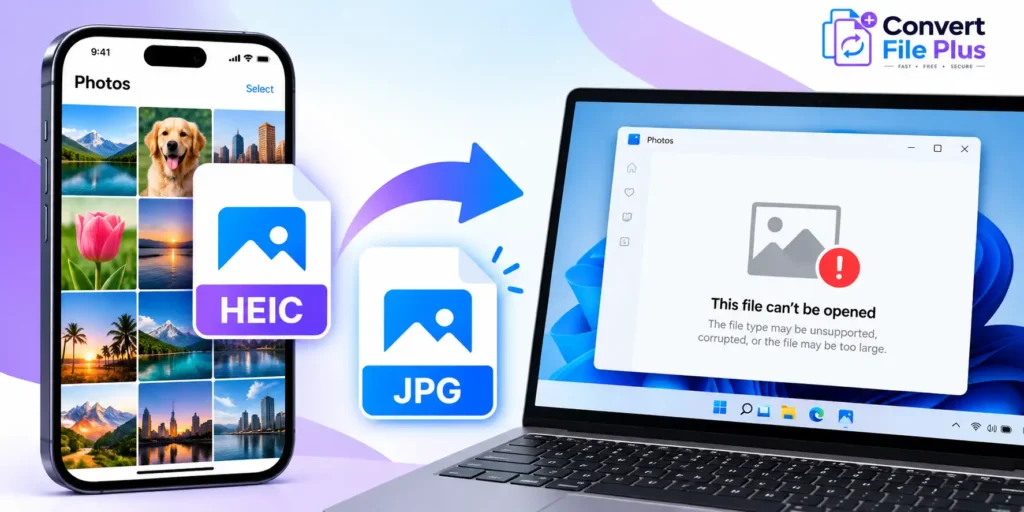
Illustration showing an iPhone HEIC photo being converted to JPG to fix Windows photo compatibility issues.
Image Conversion Hub

Why Won’t My iPhone Photos Open on Windows? HEIC to JPG Fix

If your iPhone photos won’t open on Windows, the files may be saved in HEIC format, which your current Windows app or installation may not support. You can fix this by adding the required image support, transferring the photos using a compatible method, or converting HEIC images to JPG. The right solution depends on whether you want to open a few existing photos, transfer a large photo library, or make future iPhone pictures easier to use on Windows. Why iPhone photos may not open on Windows Many iPhones save photos as HEIC files when the camera uses the High Efficiency format. HEIC is based on the High Efficiency Image File Format (HEIF), designed to store images efficiently. The problem is not necessarily that your photo is damaged. Your Windows computer may lack the required image support, or the particular app you are using may not be able to read the file. Common signs include: First, check the file extension. If the image ends in .HEIC or .HEIF, compatibility may be the issue. If a JPG file also fails to open, investigate the file itself or the application instead of assuming that HEIC is responsible. Fix 1: Add HEIC support to Windows If you want to keep your original HEIC photos, installing the appropriate image support is a sensible first option. Microsoft documents HEIF image support as one way to address unsupported HEIF or HEVC files in Windows Photos. Depending on your Windows version and the file involved, additional components may be relevant, particularly for video files. Do not assume that a video-related extension is necessary for every still photo. Microsoft’s troubleshooting guide explains the available options. When to choose this method: You regularly receive HEIC photos and prefer to keep them in their original format. If it still fails: Restart the Photos app, confirm the extension was installed, and check whether the file opens in another compatible application. If the file is actually a video or uses a different encoding, the required support may differ. Fix 2: Convert HEIC photos to JPG If you need a photo for a website, email attachment, document, or application that accepts JPG, conversion may be the simplest solution. JPG is widely supported by operating systems, browsers, editing applications, and online services. Converting a HEIC photo to JPG creates a more broadly compatible file, although JPG uses lossy compression and may not preserve every characteristic of the original. How to convert HEIC to JPG You can try the ConvertFilePlus HEIC to JPG converter. Check the tool’s current instructions and supported limits before uploading. Avoid uploading confidential or sensitive photographs to an online service unless you have reviewed how it handles files. Important: Renaming a file from .HEIC to .JPG does not convert its contents. Use an actual image conversion process. Does converting HEIC to JPG reduce quality? It can. JPG is a lossy format, so the converted file may differ from the original. The result depends on the conversion settings and the image. For important photographs, keep the original file and compare the converted version before deleting anything. If you need to preserve the original format and quality characteristics, installing compatible HEIC support may be preferable to conversion. Fix 3: Change your iPhone camera format for future photos If this problem happens frequently, you can change the format used for new pictures. On your iPhone: Apple states that this setting makes the camera capture new photos in JPEG and videos in H.264, improving compatibility with Windows and other devices. See Apple’s official transfer guide. There is one important distinction: this setting affects future captures. It does not automatically convert the HEIC photos already saved in your library. Choose this method if: You frequently move new photos to older Windows applications, websites, or devices that work more reliably with JPG. Consider the trade-off: HEIC can store images efficiently. If storage space matters or your other devices support HEIC, you may prefer to keep the High Efficiency setting and convert only the files that need wider compatibility. Fix 4: Transfer photos using a compatible method Sometimes the problem appears during transfer rather than when opening a file that is already on the computer. Apple recommends using the Apple Devices app and a USB cable when importing photos to a Windows PC. Unlock your iPhone and approve the trust prompt if it appears. If iCloud Photos is enabled, Apple says you may need to download the original, full-resolution versions to the iPhone before importing them through a cable. You can also access your photos through iCloud Photos on the web or use another supported transfer method. The exact process depends on how your photo library is configured. For detailed steps, refer to Apple’s instructions for transferring photos to a Mac or PC. Remember that transferring a file does not necessarily change its format. If the photo arrives as HEIC and your Windows app cannot read it, you may still need compatible image support or conversion. Which fix should you choose? Your situation Best first step Why You want to open existing HEIC files Install HEIF image support Keeps the original format You need a photo for a website or form Convert HEIC to JPG JPG is widely accepted Every new iPhone photo causes problems Select Most Compatible New photos use JPEG Photos fail during USB import Check Apple’s transfer instructions The issue may be transfer-related Both HEIC and JPG files fail Check the file and app The problem may not be HEIC support Common problems and how to solve them Windows still asks for an extension Confirm which file type you are opening and whether the relevant extension has finished installing. Close and reopen Photos, then test the file again. If you are working with video rather than a still image, check the applicable video codec requirements separately. The converted JPG looks different Some visual differences can result from JPG compression or conversion settings. Keep the original and use a suitable quality setting when one is available.
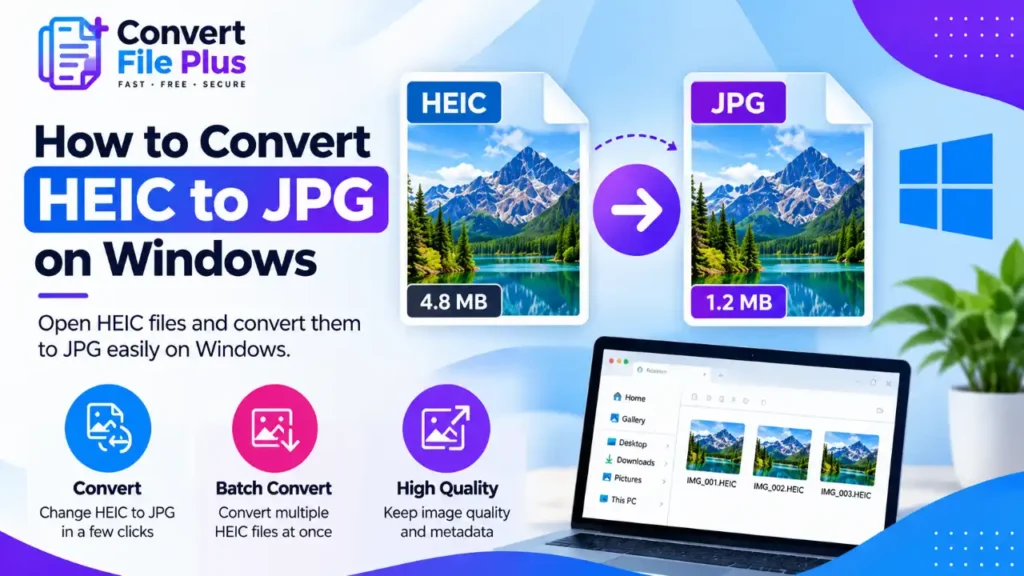
How to convert HEIC to JPG on Windows using image conversion and batch processing methods
Image Conversion Hub

How to Convert HEIC to JPG on Windows (Step-by-Step Guide)

The quickest way to convert a HEIC photo to JPG on Windows is to open it in the Photos app, choose Save as, and pick JPG. That works one photo at a time, and only after Windows can read HEIC. For a whole folder, a right-click converter or a command-line tool saves a lot of time. iPhones and iPads usually save photos as HEIC, and Windows doesn’t always open them. This guide shows how to get Windows reading HEIC, which conversion method suits your situation, what changes inside the JPG, and how to fix the errors people hit most often. Which Method Should You Use? Method Best for Batch? What it needs Watch out for Photos app A few photos One at a time Microsoft’s HEIF (and often HEVC) extension Menu wording varies by app version Paint A fallback if Photos fails One at a time The same extensions Reports of Paint opening HEIC are mixed Right-click converter (such as CopyTrans HEIC) Regular imports from a phone Yes A third-party install Check current licence and privacy terms ImageMagick Large folders, if you’re comfortable with a command prompt Yes Install plus a command Back up first; confirm your build reads HEIC Online converter Occasional, non-sensitive photos Depends on the site A browser and an upload Your photos leave your PC; check limits and privacy policy For a few photos, use Photos. For a large folder, go straight to the batch-conversion methods. Check That Windows Can Read HEIC First HEIC is a file type built on the HEIF image format, and Windows reads it through optional Microsoft Store add-ons. Windows may need the HEIF Image Extensions and, depending on your device and installed components, HEVC support to open certain HEIC files. If Photos prompts you to install an extension, follow the Microsoft Store link it provides and check the requirements shown for your PC. microsoft Many PCs already have one or both add-ons, so you may be able to skip this section. Method 1: Convert One Photo With the Photos App Photos can save an open HEIC image as a JPG through its three-dot menu and the Save as option. slashgear Save as creates a new file, so your HEIC stays where it was. Photos has changed its interface over time, so if you don’t see Save as, try another method below. Paint can also open and save HEIC files on some setups. Reports conflict, so treat it as a fallback. Method 2: Convert Many Photos at Once Photos converts one file at a time, which gets slow once you have a folder full of photos. Here are three ways to handle batches. Right-click converters CopyTrans HEIC for Windows adds a convert option to File Explorer’s right-click menu, and tools such as iMazing HEIC Converter convert whole folders. Check each vendor’s current licensing and privacy terms before installing. Features and pricing change. ImageMagick (command line) If you’re comfortable with a command prompt, ImageMagick can convert a folder. Copy the HEIC files into a working folder first, open a command prompt there, and run: This creates JPG files alongside the HEIC originals. The -quality 90 value is only an example, not a universal recommendation. Test the command on a few copied files first, and run magick -list format | findstr HEIC to check whether your ImageMagick build supports HEIC input. Online converters Upload-based converters need no installation, but they receive your photos. Use them for non-sensitive images, check file-size and daily limits, and read the privacy policy first. What Changes When HEIC Becomes JPG Check the Converted Photo Common Problems and Fixes Avoid the Problem Next Time You can change what your iPhone saves. Go to Settings > Camera > Formats and choose Most Compatible, and new photos and videos will use JPEG and H.264. Photos already taken stay as HEIC, and JPEG files are larger. apple When importing photos from an iPhone or iPad to a PC over USB, the transfer process may convert HEIF images to JPEG. On supported Apple devices, choose Settings > Apps > Photos > Keep Originals if you want to preserve the original format during transfer. Menu availability can vary by OS version. Sharing by AirDrop, Messages or email may convert it automatically too. So if some photos arrive as JPG and others as HEIC, the transfer method may be why. apple Frequently Asked Questions Conclusion Start with one photo. Get Windows reading HEIC, save a single file as JPG in Photos, and check the result. For a whole camera roll, test your chosen batch method on a few copies first, and keep the originals until you’ve confirmed the JPGs look right. Sources and References This guide is based on the sources above. It does not include our own conversion tests.

Mountain valley landscape with a blue-purple banner reading JPG to WebP.
Image Conversion Hub

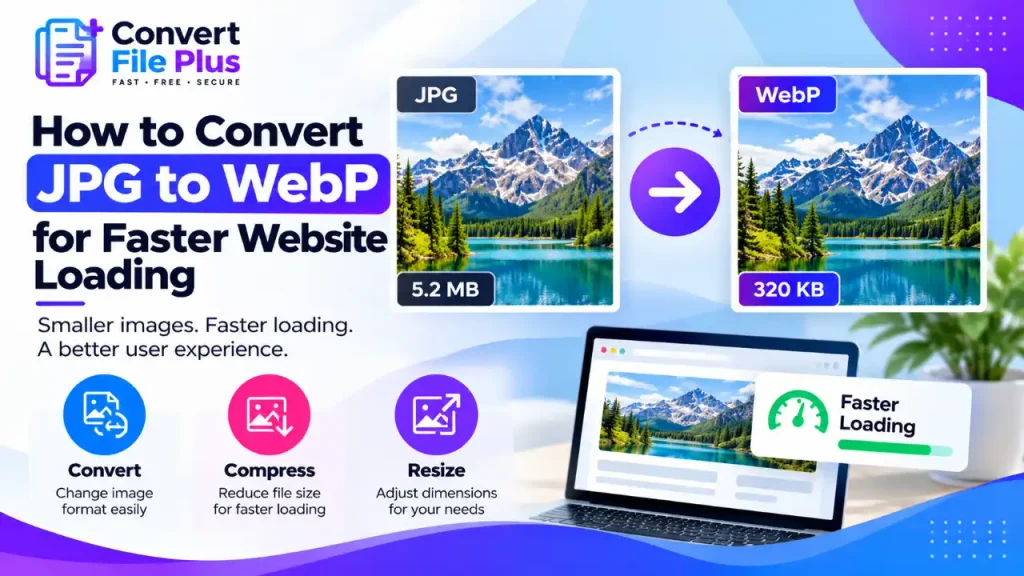
How to Convert JPG to WebP for Faster Website Loading

If your website images are slowing down page loading, converting JPG files to WebP may help reduce their file size. The key is to choose a suitable quality setting, compare the converted image with the original, and publish it correctly with a JPG fallback where needed. Google reports that lossy WebP files are 25–34% smaller than comparable JPEGs at an equivalent quality index, but your actual savings will depend on the image and conversion settings. Smaller files can help, but they do not guarantee a faster page. Google reports that lossy WebP files are 25-34% smaller than comparable JPEGs at an equivalent quality index, though your own savings will vary by image. Smaller files help, but they are not a guaranteed speed fix. This guide shows how to convert, how to publish safely, and how to check whether your pages actually improved. What Changes When You Convert JPG to WebP WebP is an image format developed by Google that offers lossy and lossless compression, transparency, and animation. The 25-34% figure comes from Google’s own comparison at matching SSIM quality, a measure of structural similarity. It is a useful benchmark, not a promise for every file. One point is easy to miss: a JPG is already lossy. If you convert it to lossy WebP, the encoder works from pixels that have already lost detail, then discards a little more. Converting cannot bring back detail the JPG threw away. So start from the original photo when you have it, and keep your JPGs as backups. WebP is supported by all major modern browsers, so browser compatibility is less of a concern for most websites. However, older browsers and some applications may have limitations. If you need to support those environments, use a JPG fallback. Our guide to choosing an image format explains how WebP compares with other formats. Our guide to choosing an image format covers how WebP compares with other formats. Choose a Conversion Method Method Best for Watch out for Online converter A few images, no installation Check file limits, the privacy policy, and what the quality setting does Image editor export People already editing photos Not every editor exports WebP, so check yours cwebp (Google’s command-line tool) Developers and large folders Needs the command line; quality runs 0 to 100 Imagemin WebP plugin Sites with build scripts Needs a project build setup CMS or WordPress plugin Ongoing uploads Check free-plan limits and compatibility No method is best for everyone. For one-off conversions, an online tool is usually the quickest. Step-by-Step: Convert JPG to WebP For a one-off conversion, you can try the ConvertFilePlus JPG to WebP converter. Choose the available conversion option, download the result, and compare its file size and appearance with your original before publishing it. Check the tool page for the current file-size and usage limits. Publish WebP Safely: Fallbacks and WordPress The standard approach, described by web.dev, uses a <picture> element: Browsers use the first source they support, and fall back to the <img> tag if none match. List WebP first, always include the <img> last, and keep its file in a universally supported format such as JPEG. If your server can rewrite requests based on the Accept header, web.dev describes a way to serve WebP automatically, with a Vary: Accept header so caches behave correctly. That route suits developers. WordPress: WordPress: WordPress 5.8 introduced support for uploading and using WebP images, provided the server’s image-processing library supports the format. If your upload fails, check whether your hosting environment supports WebP before troubleshooting the file itself. See the official WordPress 5.8 WebP announcement for details. For more on image optimisation in WordPress, read our guide to compressing images for WordPress. For more on Media Library workflows, see our guide to compressing images for WordPress. Will WebP Make Your Site Faster? Converting JPG to WebP can reduce image file size, which may shorten download time when the image is a significant part of the page’s loading work. Google reports that lossy WebP files are 25–34% smaller than comparable JPEGs at an equivalent quality index. Your actual result may differ depending on the image, encoder, and quality setting. Treat this figure as a benchmark, not a guaranteed reduction. A smaller image does not automatically make the whole page faster. Server response time, when the browser discovers the main image, and other page resources can also affect Largest Contentful Paint (LCP). Measure your page before and after making the change. But web.dev’s field data shows that for most sites with slow Largest Contentful Paint, downloading the image is a small share of the total time. Server response and late discovery of the main image often cost more. So convert, then measure before and after. Our guide to how image compression affects website performance explains how to find out where your page loses time. Common Mistakes and Troubleshooting Frequently Asked Questions Conclusion Start with one image from your original files. Convert it to WebP, compare the output’s size and visual quality, and publish it with an appropriate JPG fallback if needed. Then measure your page performance before and after the change rather than assuming that a smaller image guarantees faster loading. Ready to test one image? Try the ConvertFilePlus JPG to WebP converter and review the result before converting the rest of your images. Sources and References This guide is based on the sources above. It does not include our own conversion tests.

how to choose the right image format
Image Conversion Hub

How to Choose the Right Image Format for Different Uses

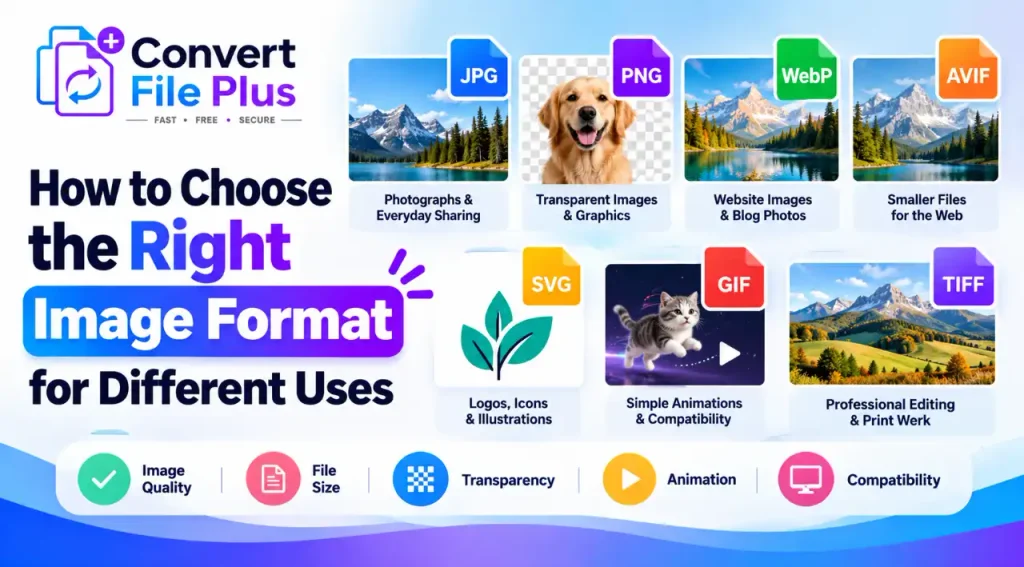
The right image format depends on what the image is for: JPG for photographs and everyday sharing, PNG for transparency or exact pixels, WebP or AVIF for efficient web delivery, SVG for logos and icons, GIF for simple animation, and TIFF for print and editing workflows. These are starting points, not rules, because the image itself, the destination, and the software all matter. The costly mistakes tend to be quiet ones. Converting a JPG to PNG does not bring back detail the JPG already discarded, and a smaller file is not automatically a better one. Here is how to decide. Quick Guide: Which Image Format Should You Choose? Image format Best suited for Main advantage Main limitation JPG/JPEG Photographs and everyday sharing Small files for photos; opens almost everywhere Lossy; no transparency; weak for sharp text and line art PNG Screenshots, graphics, transparent images Lossless, with full transparency Larger files, especially for photos WebP Website photos and graphics Lossy and lossless modes, transparency, animation Some older software and platforms may not accept it AVIF Website images where file size matters Generally strong compression; transparency; HDR Slower to encode; needs a fallback for older browsers SVG Logos, icons, diagrams Stays sharp at any size Poor fit for photos; not accepted everywhere GIF Simple animations, legacy compatibility Works nearly everywhere Limited to 256 colors; animated files can be large TIFF Scans, professional editing, print files High-quality source files; supports print color spaces Large files; most browsers cannot display it Understand the Difference Between Image Formats A few ideas explain nearly every recommendation below. One more point: renaming photo.jpg to photo.png does not convert it. The extension is only a label. The encoded data underneath is unchanged, so the file may fail to open or upload. Real conversion re-encodes the image in the new format. Which Image Format Is Best for Different Uses? Photographs and Everyday Sharing JPG is the safe default for photos you email, message, or upload. MDN describes it as the most widely used lossy format for still images, and every major browser supports it. It is a weaker choice for screenshots, charts, or anything with crisp text, because lossy compression can leave visible artifacts around sharp edges. If you plan to edit a photo repeatedly, keep the original rather than re-saving JPG copies. Transparent Images, Product Cutouts, and Graphics PNG is lossless and supports full transparency, which makes it a common choice for product cutouts, logos exported as images, and graphics with text. The trade-off is size: web.dev warns that PNG’s quality comes at a significantly higher file size than other formats, so use it judiciously. Transparency also depends on the whole workflow. Exporting a transparent image as JPG fills the empty area with a solid color. Some platforms also flatten uploads, so check the image in its final location. On websites, WebP and AVIF can carry transparency too, often at smaller sizes. Website Images and Blog Photos For website images, WebP and AVIF can reduce file sizes compared with older formats, depending on the image and encoding settings. Choose the format based on visual quality, browser and platform support, and your site’s delivery setup. Where compatibility is a concern, provide an appropriate fallback. MDN reports that lossy WebP averages 25 to 35 percent smaller than comparable JPG files, and that AVIF generally compresses better than WebP. Treat those figures as averages, not promises. Results depend on the source image, the encoder, and the quality setting. AVIF also lacks progressive rendering and has less historical browser support, so keep a fallback. Size still matters in pixels. Raster images do not scale up cleanly, and web.dev recommends serving responsive versions instead of one oversized file. Logos, Icons, and Illustrations SVG suits logos, icons, and diagrams because it redraws shapes at any size. MDN advises preferring the SVG version of an icon whenever one exists. Two cautions apply. First, a logo saved only as a small PNG cannot become a true vector by changing its extension; you need the original vector file. Second, not every destination accepts SVG, and MDN notes that extra restrictions apply when SVG is used as an image. When a platform refuses it, export a PNG at a generous size. Simple Animations GIF is limited to 256 colors but works almost everywhere. For new web work, MDN suggests considering WebP, AVIF, or APNG for animation, and web.dev goes further, recommending video because GIFs produce significantly larger files. Still, not every platform accepts every animated format. If a destination only takes GIF, use GIF and keep the clip short and small. Professional Photography, Editing, and Print Workflows TIFF was created for scanned photos and supports color spaces such as CMYK, which is why MDN calls it a good choice for images intended for print. Compression varies. Files can be uncompressed, losslessly compressed, or even JPEG-compressed, so “TIFF” alone does not guarantee lossless quality. The best delivery format is the one your printer, editor, or publisher specifies. Ask for their file requirements before exporting. And convert TIFFs before web use, since browsers other than Safari do not display them natively. JPG vs PNG vs WebP vs AVIF: What Actually Matters? Two myths are worth correcting. Converting JPG to PNG cannot restore detail already discarded, because the loss happened when the JPG was made. And converting an already compressed JPG into another lossy format applies a second round of compression, which can add artifacts without a guaranteed size saving. A conditional rule of thumb: JPG for general photos, PNG for transparency or exact pixels, WebP or AVIF for optimized website delivery, and SVG when you have a vector source. Common Image-Format Mistakes to Avoid How to Choose the Right Image Format in Three Steps Frequently Asked Questions Conclusion Choosing the right image format comes down to a few questions: what the image is for, how much quality you need, whether it needs transparency, how small the file must be, and where it will be used. Answer these questions, and

top 5 graphic design software
Image Conversion Hub

Top 5 Graphic Design Software Every Creator Should Use in 2025

Introduction  Nowadays, graphic design has become a part of everyone’s life. For everyone who is a YouTuber, content creator, freelancer, or an entrepreneur, it has become a superpower them. Visual content shows their brand identity. It has become even more important in 2025, as the advent of AI has completely changed the design process and made it more intelligent. Now it takes less time to make designs because of to built-in AI, the work in every software has started becoming faster. Every software has its purpose, and people choose differently — some find Canva the best, while others don’t find Photoshop useful. That is why in this blog, we will tell you about the Top 5 Graphic Design Software programs that you can choose according to your goals and requirements. We will give brief details about each tool so that you can decide which one is best for you. Let’s start without wasting time and see which tools can take your creativity to the next level in 2025. Read Also: Top 5 Best Online Courses for Better Career Options: A Complete Guide Adobe Photoshop Adobe Photoshop is known as the king of the graphic design world, and millions of creators use it worldwide. Whether you want to create digital art in Adobe Photoshop or do social media creative design, its AI-based features, like auto background removal, smart object detection, and content-aware fill make your workflow quite efficient. It can be a little complex for beginners, but you should try it once; it is unbeatable. Canva (Free & Pro) Canva is for those creators who find Photoshop a bit complex to use. Canva is an easy-to-use interface in which you can easily create any creatives by dragging and dropping. It offers many templates, some free and others paid, so you can often get your work done at no cost. In this, you can easily create social media posts, resumes, presentations, or even logos. Now, in 2025, with the arrival of AI mode’s magic tool, you can create your creatives just by giving a prompt, and that too looks realistic. You get a lot in the free plan, and if you go for the Pro plan, then advanced templates get unlocked. Figma Figma is a great tool for UI/UX design or website mockups, especially as it makes it super easy to work with a team with real-time collaboration features. You can work with it directly in the browser, no installation required. In the updates coming in 2025, Figma has become even more efficient with smarter features, including better prototyping tools, AI layout suggestions, and faster design-to-code workflows. Perfect for both beginners and pros, you can also use it for digital product designs and graphics. Affinity Designer Affinity Designer can be the best alternative software for you to Illustrator because it has both vector and raster-based workflows in one place. This is just a one-time investment after which you do not have to pay any monthly subscription. Along with this, its latest version has quite advanced AI-assisted brushing, which comes out as a very powerful software. Illustrator is also a very good tool for logo designers; you can explore it as well. CorelDRAW Graphics Suite CorelDRAW is a long-standing and trusted name in graphic design, celebrated for its excellence in print design. In this, you can create high-level posters, logo design, and banners. It is mostly used for print, advertising logo branding. Along with this, it has AI-powered image enhancement, advanced typography tools, and seamless multi-page layout design, which makes this software quite refined. This is mostly used for professionals. It works for vector illustration. It can be a bit complex for beginners, but for those who are pro, this can be the best option. How to Choose the Right Software First of all, before selecting this software, see what your goals are, for which purpose you need it, what the work requirements are, and explore the software according to that, like design needs: social media, UI/UX, print, illustration? Then see at what level you are. If you are a beginner, then the Canva free version can be your best option. But if you are at a pro level, then using Photoshop or Affinity Professional will be best for you. If you need it for print design, then CorelDRAW will be best for you. Then you see which one is compatible with you, what your budget is, and you can decide accordingly. Keep in mind that if you are going towards the paid version, then first take the trial version and explore it, then go to the software Conclusion  Every software is special in its way; you just need to select the right tool according to your work. If you choose the right software or tool, it takes your work to the next level. Whether you are a fan of Canva for simple designs or Figma for UI/UX, every tool comes with unique features. Just decide your goals and then choose the tool according to your creativity.

Top Chrome extensions for productivity
AI Image Technology, Image Conversion Hub

Top 10 Chrome Extensions to Boost Productivity in 2025

Introduction Nowadays people want to speed up their work, today speeding up work does not mean doing work quickly but working smartly because every second is important and to make this work smart, chrome extension for your chrome browser saves this time of yours and in 2025, with the arrival of AI, many new chrome extensions have been made, small chrome extensions increase your productivity, whether you are a student, freelancer or an office employee, this tool will be very beneficial for you, today it will be told in this blog, so let’s start doing it one by one. Read Also : What is online DCA Course With Certificate Notion Web Clipper Whenever you are researching something, it becomes a bit difficult for you to make notes of important things. Notion Web Clipper is a smart solution to this problem. With just one click, you can save any article, blog, or link directly in the Notion workspace. Apart from this, you can do everything in an organized manner, whether you want to make notes, collect ideas, or store content for future reference.   Grammarly   Whenever you are doing any work related to writing like writing emails, writing a blog, or posting on social media, or writing any other content, Grammarly can be a good helper for you. This extension checks your grammar, spelling, punctuation, and tone in real-time. It not only suggests corrections but also suggests better words and clear sentences so that you can improve your content further. So that your content looks professional, it is a must-have tool for writing error-free content, especially for content creators and working professionals.   Todoist Todoist makes you productive in your daily life. It helps you organize your day. This Chrome extension also helps you add tasks, set deadlines, and manage priorities. It also combines webpages into tasks without switching tabs. It has a very simple interface, and you can also set reminders.   Momentum Whenever you use the Chrome browser and click on a new tab, it becomes blank. So why should your new tab be a blank space from now on? That is why the Momentum Chrome extension helps you in this. It turns it into a motivational dashboard. It provides an attractive background image, an inspiring quote, and reminds you of your daily focus in every new tab. Additionally, you can include at least two of your tips directly. This extension increases your productivity, so that you can do your work in an organized way and do not miss any work.   StayFocusd While doing your work, you must have noticed that we go to work, but at the same time, social media platforms like YouTube, Facebook or Twitter distract us. In such a case, StayFocusd Chrome can help you. It can be a perfect solution. It decides the time for you as to how much time you want to spend on a particular site. As soon as the time limit ends, it blocks the website. This extension saves you from getting distracted from work. This tool is best for serious people or content creators, and professionals.    Clockify Time Tracker You might have noticed that whenever you are spending time on any social media platform, how the whole day passes by without you even realizing it. In such a situation, Clockify can prove to be a smart tool in tracking your productivity. This extension helps in setting a timer for each task, so that you get to know exactly how much time you have spent on which work.   This tool is extremely useful for freelancers, remote workers, and students because the right use of time is the real game changer of productivity.   Loom Whenever you need to explain something to someone, it becomes a bit difficult to explain it in writing. Loom solves this problem. This extension provides you with the facility of screen recording, voice-over, and making webcam videos, that too without any hassle of editing. Along with this, it is a perfect tool for team collaboration, tutorials, feedback, or quick explanations to the client. Just click, record, and share. It is simple and fast. There are some things limited in the free plan.   OneTab If you also keep 20-30 tabs open simultaneously, then your system will slow down. So to solve this problem, One Tab converts all those tabs into a single list, which reduces the load on RAM and increases productivity.   You can restore the tab whenever you want. The entire tab chaos gets organized with just one simple click. This is the best tool to keep the focus intact! So go ahead and add the extension now.   Scribe If you find it boring to make step-by-step guides, then Scribe can solve this problem. This extension records your screen actions and converts them into automatic steps, along with this it also provides you with screenshots! Whether you want to make a training doc or explain a process to someone. Just do your work, and Scribe will do the rest by making notes smartly. This is a must-have tool for fast documentation.   ChatGPT for Chrome (Any plugin or integration) Suppose you are on any website, and without switching tabs, it gives you the facility to get a summary, reply, explanation, or code help. So, I have found a solution for this as well. Think, how would it feel to have Chatgpt inside your browser itself, without changing any tab.   It easily creates notes, summaries, explanations for you, that too instantly. Whether you need to write an email, understand a complex article, or conduct research and create a document file, this tool helps you instantly. It boosts both your productivity and clarity. It is a very smart AI assistant.   How to Choose the Right Extensions First of all, understand the nature of your work, what purpose do you need to solve, like do you need management, blocking distractions, or help in writing? So, first of all, understand

Best Video Editing Software
Image Conversion Hub

Comparing the Best Video Editing Software in 2025

  Introduction In today’s time, videos are used everywhere, whether you want to make an Insta reel or YouTube videos or make promotional videos for the channel, you have to use videos everywhere. In such a situation, the question arises that which tool should be used for best  video editing software. By the way, in 2025, many such tools have come in the market which bring with them many features, some are for freshers in which you have to do simple drag and drop and some are advanced labels which are professional like Adobe primeire and Fine Cut Pro, if you use them then you become a professional video editor. In this blog, I am going to talk to you in a very real way. No more technical language, no boring comparisons. Just real comparisons – which software is best for whom. If you are a beginner, or a freelancer, or a YouTuber, I will suggest something for everyone. Ultimately, you will have to decide for yourself which software you should use for your work. Also Read this : Best Free Photo Editing Apps in 2025 You Can’t Miss   What to Look for in a Video Editing Software in 2025 See, choosing video editing software in 2025 is not as easy as it used to be. While basic features were enough, expectations have risen – and rightly so! Everyone now wants smart features, fast rendering, AI tools, and a smooth UI. First of all, check if the software is user-friendly. Whether you are a beginner or an intermediate level, if you get confused the moment you open the tool, it is of no use. The interface should be clean, understandable, and you can learn quickly by watching the tutorials. Second point: Features. Are there features like our green screen, transitions, effects, audio editing, and motion tracking? 2025 also brings AI-powered features – like auto-cutting, background remover, and even voice-to-subtitle generator. All of these double the productivity. Third thing: Compatibility. Whether it is Windows or Mac, or you edit from mobile – it should run smoothly everywhere. If you edit on-the-go, the mobile version should also be powerful. And yes, look at the export options too. Does it support 4K export? Is the rendering speed good? Is there cloud storage integration or not? Finally – the price! Everyone has a different budget. So you should also see what is available in the free version and what extras are being given in the paid version. Only then will you be able to take the right decision.   Adobe Premiere Pro – The Industry Standard You must have heard the name of this software. This software is used by every company, content creators, filmmakers or you can also say that it is a video editing software that is becoming more popular in the industry. This year Adobe has also added AI features – like auto-cut, smart audio syncing, and even B-roll suggestion! Pros: Extremely powerful Regular updates Tons of tutorials available Professional output  Cons: A little complex for beginners Subscription can be costly   Final Cut Pro – Mac Users’ Power Tool Since you are in the Apple ecosystem, Final Cut Pro is a dream. Lightning-fast rendering with Apple Silicon and buttery smooth UI. Machine learning based video enhancement has been added in the 2025 version – literally, brightness, color, sharpness set in one click. Pros: Superfast rendering Seamlessly with Mac devices One-time payment Cons: Only for Mac UI may look slightly different initially DaVinci Resolve – Best Free Option for Pros This is a gem. The free version itself gives Premiere-level capabilities. Especially if you are serious about color grading, then there is nothing better than DaVinci. The 2025 update also adds AI audio noise reduction and auto-subtitle feature.    Pros: Free version is insane Best color correction tools Regular updates Cons: Slightly heavy software Beginners may take time to learn  CapCut – The Rising Star for Beginners & Mobile Creators Capcut is now more popular than the mobile version. It has been around since the days of TikTok and offers some great features to make your video editing journey even more beautiful. It has almost all the features that can help you create a professional video. AI effects, trending transitions, auto captions – all built-in. The desktop version is also up and running till 2025.   Pros: Free and easy to use  Best for Reels/Shorts  Great templates  👎 Cons: Not ideal for long-form content  Limited export options sometimes   Filmora – Simple Yet Powerful If you are a beginner and want a very smooth start, Filmora is for you. Clean interface, drag & drop editing, and now in 2025, tools like AI scene detection, auto music sync are also available. 👍 Pros: Beginner-friendly Affordable Great effects and transitions 👎 Cons: Limited customization Advanced users will find it a bit basic  CyberLink PowerDirector – Underrated Yet Feature-Rich I know you might be hearing about this software for the first time from some people but now the software has become much more pressure-efficient. Earlier it was only for the intermediate level but now AI based features have been added to it which compete with Premiere and Filmora. If we talk about its speed then it is quite good, rendering time is also good and its interface is clean and user-friendly, one can easily use it. In 2025 they have introduced features like AI Motion Tracking, Voice Denoise, and even Background Removal without Green Screen. And yes, if you are a fan of transitions and effects, then its built-in templates and animations are next level — you will look like a video professional as soon as you use it. Pros: High-speed rendering Powerful AI tools added in 2025 Great for both beginners and pros Value-for-money pricing (subscription + one-time options) 👎 Cons: Performs best on Windows, Mac version is a bit limited UI has a slight learning curve the first week Bottom line — If you are looking for a video editor

Future of Mobile Apps
Image Conversion Hub

The Future of Mobile Apps: Key Developments to Watch in 2025

Guys, you must be thinking what the future of mobile apps is going to be like? What new surprises will happen in 2025? Today, everyone has a smartphone in their hands and life seems meaningless without apps. Earlier, there was only calling and SMS, now see – money is being transferred from one app, shopping is happening from another, entertainment is being provided from the third. What other surprising changes are going to come in the coming time? Come on, sit down with tea, because this blog will open your eyes! 😎 1. Tremendous role of AI and Machine Learning Guys, you must have heard the name of AI (Artificial Intelligence). Now it is not just about sci-fi movies, it has entered inside your phone! 🔹 Smart Suggestions: Now your streaming apps like Netflix and YouTube will become more intelligent. Whatever you see once, it will understand what you like and will recommend the same content. 🔹 Boom of Voice Assistants: Now just saying “Ok Google” or “Hey Siri” will not work. In future it will become more powerful. Your assistant will understand your mood, schedule and preferences in advance. Meaning your work will be done without typing! 🔹 Auto-Reply and Smart Chats: Apps will automatically write messages on your behalf, send emails and schedule tune-up meetings. Meaning you just chill, AI will do the work! Also read this : 10 Best AI-Powered Productivity Apps You Must Try in 2025   2. The era of Super Apps Nowadays we have to download different apps for every work. One for ordering food, one for cab, one for payments. But Guys, the trend of “Super Apps” is going to come in the future! Have you seen WeChat in China? Chatting, shopping, bill payments, everything can be done from a single app. Such super apps are going to come in India too. Paytm, Tata New, and Reliance Jio are already working in this direction. Meaning everything in one app – absolute full power! 3. Magic of Augmented Reality (AR) and Virtual Reality (VR) Guys, imagine if you can try new clothes or see new furniture virtually in your room while sitting at home. This is going to be possible with AR and VR! 🔹 Revolution in Gaming: Games like PUBG, Fortnite will now be more immersive. It will feel like you are in a battlefield yourself! 🎮 🔹 Online Shopping Experience: AR and VR will be used in fashion and furniture shopping. You will know firsthand whether the shoes you are going to buy will look good on your feet or not! 🔹 Education and Training: Online classes will not be boring. Virtual classrooms and AR-based learning tools will change the entire landscape of education. 4. 5G is coming, will anyone give up on speed? The speed that we are getting now is nothing. As soon as 5G arrives, apps will become lightning fast. 💨 🔹 No More Buffering: No more tension of buffering while watching YouTube or Netflix. 🔹 Effect of Cloud Gaming: The era of PC and Console gaming is over, now your phone will become the biggest gaming machine! 🔹 Instant Downloads: The apps that used to download in 2-3 minutes earlier, will be installed in just one second. Meaning superfast life! 5. Big Scene of Security and Privacy As much as technology is growing, the risk of hacking and cyber crimes is also increasing. In future, apps will have to be made more secure! 🔹 Biometric Authentication: Now the tension of guessing the password is over, because login will be done with fingerprint, face ID and voice recognition. 🔹 Zero Trust Security: Apps will only take necessary permissions, without giving unnecessary access to your data. Meaning privacy and security both level up! Blockchain-Based Security: Decentralized apps (DApps) will come which will protect your data from being hacked. Meaning ultimate safety! 🛡️ 6. Green Apps – Environment Friendly Technology Guys, in future environment-conscious technology will be in a lot of demand. People will want their apps to be energy-efficient, consume less battery and be sustainable. 🌱 🔹 Low-Power Apps: Light weight apps that save battery will become more popular. 🔹 Eco-Friendly Development: Developers will make such apps that put less load on servers, so that the carbon footprint is reduced. 🔹 Recycling and E-Waste Management Apps: Such apps that help people recycle electronic waste. 7. Personalized Experience – Your Phone According to You Now no one’s phone will be the same. In the coming time, apps will become so smart that they will be customized according to your habits. 😎 🔹 Auto-Customization: Your phone will understand that you like dark mode at night and light mode during the day. 🔹 AI-Based Notifications: Apps will send notifications according to your time and priority, without wasting your time. 🔹 Health & Wellness Apps: Which will track your diet, workout and sleep pattern and give you suggestions. Conclusion –  The future is going to be crazy! 😍 If you think that today’s mobile apps are awesome, then wait Guys, because what is coming will change the whole game! The combination of AI, AR, 5G, Super Apps and personalization is going to be amazing. You just keep your eyes open and enjoy the new innovations! 🚀 If you liked this blog, please share it and tell me which future technology is you most excited about?

Best AI productivity apps
Image Conversion Hub

10 Best AI-Powered Productivity Apps You Must Try in 2025

Nowadays it is the era of AI, and if you are not using AI tools to increase your productivity, then understand that you are missing the game. Be it work, studies or any side hustle, AI-powered apps can make your life easy. Now the problem is that there is a flood of AI tools in the market! New apps are coming everywhere, but not all are useful. So, I have made a solid list of 10 best AI-powered productivity apps here which will take your productivity to the next level in 2025. Come on, let’s go straight to the list without wasting time! ALso Read this :How Voice Search is Transforming Digital Marketing in 2025 1. Notion AI – All work at one place Who is it best for? For writing notes, planning, and writing content If you are looking for a tool that can manage notes, create to-do lists and also give AI-based smart suggestions, then there is nothing better than Notion AI.  Can summarize notes of meetings  Gives smart writing suggestions Best tool for planning and collaboration Available on: Windows, macOS, iOS, Android 2. ChatGPT – Your Personal AI Assistant Who is it best for? For brainstorming, writing and quick research Now tell me, do you sometimes get confused about how to write a perfect email? Or do you need to research on a topic but have less time? ChatGPT does exactly that! It works like a personal AI assistant that makes your writing and research work easy.  Instant answers and smart replies  Does everything from writing blogs to debugging code Perfect for writing emails and scripts  Available on: Web, iOS, Android 3. Grammarly – Write Without Any Mistakes! Who is it best for? For professional writing and error-free content If you want your writing to look absolutely professional, then install Grammarly. It not only checks spelling and grammar, but also improves the tone of your writing.  Auto-correct and spelling checker  Option to improve writing style and tone  Must-have tool for Email, blog and official documents Available on: Web, Windows, macOS, iOS, Android 4. Otter AI – Smart Assistant for Meetings 👉 What is it best for? For making notes of meetings and for transcriptions Have you ever thought how boring it is to write notes after attending a meeting? Otter AI is the solution to this problem! It auto-transcribes your Zoom or Google Meet calls and creates smart summaries. Real-time transcription and note-making Speaker identification and searchable notes Direct integration with Zoom and Google Meet  Available on: Web, iOS, Android 5. Trello AI – Smarter Project Management Best for whom? For task management and planning If you have a team or you want to organize your daily work, then Trello AI is a must-have tool. It has AI-based task automation features that make your work even easier. AI-powered task suggestions Smart reminders and easy team collaboration  The best tool for productivity boost Available on: Web, Windows, macOS, iOS, Android 6. Copy.ai – AI Se Content Likho Fatafat For whom is it best? For content creators and marketers If you struggle with writing social media posts, blogs or marketing copy, then Copy.ai will help you. This is an AI-based tool that is an expert in writing engaging and creative content. AI-generated blog and ad copy Best for writing social media and product descriptions Helpful for writing email and marketing copy  Available on: Web 7. Clockify AI – Time Management Master What is it best for? Time tracking and work productivity If you wonder where time is wasted throughout the day, then Clockify AI is perfect. It will automatically track which task is taking up your time and will also give productivity reports. Auto time tracking and analysis  Smart reminders and alerts Perfect for increasing work efficiency  Available on: Web, Windows, macOS, iOS, Android 8. Fireflies.ai – Smart Meeting Summaries Who is it best for? To record and summarize meetings Get bored of sitting in meetings? Fireflies.ai keeps a complete record of your meetings and also generates AI-based summaries, so that you don’t have to watch the whole meeting again. AI-powered meeting transcription Smart summary and action items Integration with Zoom, Slack and Google Meet Available on: Web, iOS, Android 9. Motion – Smart Task Automation Who is it best for? Smart scheduling and workload management If you have a lot of work and you don’t know what to do first, then use Motion AI. It will automatically schedule your daily tasks and meetings so that your work stress is reduced. AI-based calendar and scheduling Smart task prioritization Automatic reminders and alerts Available on: Web, iOS, Android 10. Jasper AI – SEO-Friendly Copywriting Who is it best for? For blogging, SEO content and ad copy writing If you want to write SEO-friendly blogs or engaging social media posts, then Jasper AI is the right tool. This is an AI-based writing assistant that helps in writing professional and high-quality content. AI-generated blogs and ad copies SEO-optimized content writing Fast and engaging writing suggestions  Available on: Web Conclusion: AI Tools are the future of your productivity! If you want to boost your productivity, then using AI-powered apps will be a smart decision. These tools can automate your daily tasks, save time and make work easier. Which of these AI tools have you tried? Or any new tool that you would like to use? Tell us in the comment!

Scroll to Top