
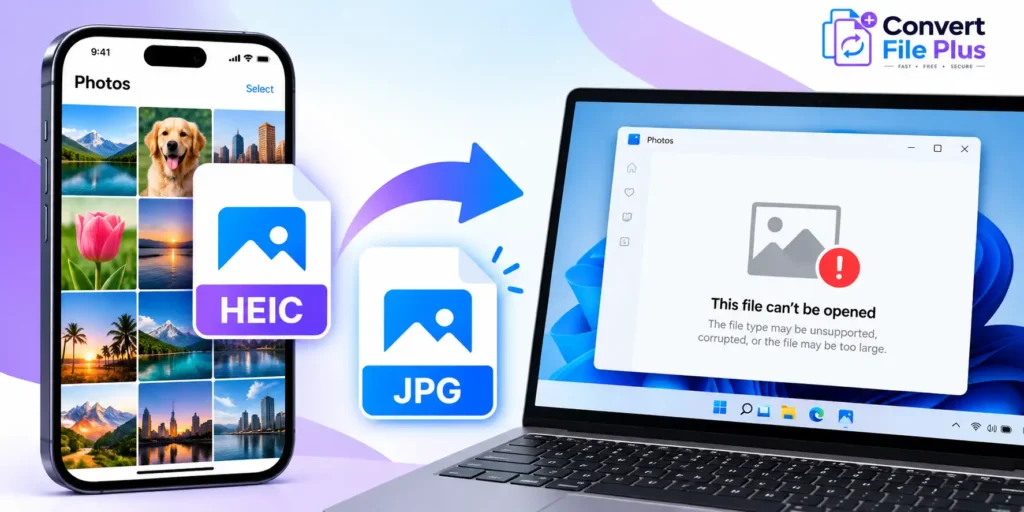
If your iPhone photos won’t open on Windows, the files may be saved in HEIC format, which your current Windows app or installation may not support. You can fix this by adding the required image support, transferring the photos using a compatible method, or converting HEIC images to JPG.
The right solution depends on whether you want to open a few existing photos, transfer a large photo library, or make future iPhone pictures easier to use on Windows.
Why iPhone photos may not open on Windows
Many iPhones save photos as HEIC files when the camera uses the High Efficiency format. HEIC is based on the High Efficiency Image File Format (HEIF), designed to store images efficiently.
The problem is not necessarily that your photo is damaged. Your Windows computer may lack the required image support, or the particular app you are using may not be able to read the file.
Common signs include:
- Windows Photos displays an unsupported-file message.
- A photo appears as a thumbnail but will not open properly.
- You see a prompt asking you to install an extension.
- A photo transfers from your iPhone but cannot be opened in an older application.
- A website or application accepts JPG files but rejects HEIC.
First, check the file extension. If the image ends in .HEIC or .HEIF, compatibility may be the issue. If a JPG file also fails to open, investigate the file itself or the application instead of assuming that HEIC is responsible.
Fix 1: Add HEIC support to Windows
If you want to keep your original HEIC photos, installing the appropriate image support is a sensible first option.
- Open the Microsoft Store.
- Search for HEIF Image Extensions.
- Check the listing and install the extension if it is available for your Windows installation.
- Close and reopen the Photos app.
- Try opening the original photo again.
Microsoft documents HEIF image support as one way to address unsupported HEIF or HEVC files in Windows Photos. Depending on your Windows version and the file involved, additional components may be relevant, particularly for video files. Do not assume that a video-related extension is necessary for every still photo. Microsoft’s troubleshooting guide explains the available options.
When to choose this method: You regularly receive HEIC photos and prefer to keep them in their original format.
If it still fails: Restart the Photos app, confirm the extension was installed, and check whether the file opens in another compatible application. If the file is actually a video or uses a different encoding, the required support may differ.
Fix 2: Convert HEIC photos to JPG
If you need a photo for a website, email attachment, document, or application that accepts JPG, conversion may be the simplest solution.
JPG is widely supported by operating systems, browsers, editing applications, and online services. Converting a HEIC photo to JPG creates a more broadly compatible file, although JPG uses lossy compression and may not preserve every characteristic of the original.
How to convert HEIC to JPG
- Locate the original HEIC photo on your computer.
- Open a HEIC-to-JPG converter that supports your file.
- Upload or select the photo.
- Choose JPG or JPEG as the output format.
- Start the conversion and download the resulting file.
- Open the JPG in Windows Photos to confirm that it works.
- Keep the original HEIC file until you have checked the converted copy.
You can try the ConvertFilePlus HEIC to JPG converter. Check the tool’s current instructions and supported limits before uploading. Avoid uploading confidential or sensitive photographs to an online service unless you have reviewed how it handles files.
Important: Renaming a file from .HEIC to .JPG does not convert its contents. Use an actual image conversion process.
Does converting HEIC to JPG reduce quality?
It can. JPG is a lossy format, so the converted file may differ from the original. The result depends on the conversion settings and the image.
For important photographs, keep the original file and compare the converted version before deleting anything. If you need to preserve the original format and quality characteristics, installing compatible HEIC support may be preferable to conversion.
Fix 3: Change your iPhone camera format for future photos
If this problem happens frequently, you can change the format used for new pictures.
On your iPhone:
- Open Settings.
- Tap Camera.
- Tap Formats.
- Select Most Compatible.
Apple states that this setting makes the camera capture new photos in JPEG and videos in H.264, improving compatibility with Windows and other devices. See Apple’s official transfer guide.
There is one important distinction: this setting affects future captures. It does not automatically convert the HEIC photos already saved in your library.
Choose this method if: You frequently move new photos to older Windows applications, websites, or devices that work more reliably with JPG.
Consider the trade-off: HEIC can store images efficiently. If storage space matters or your other devices support HEIC, you may prefer to keep the High Efficiency setting and convert only the files that need wider compatibility.
Fix 4: Transfer photos using a compatible method
Sometimes the problem appears during transfer rather than when opening a file that is already on the computer.
Apple recommends using the Apple Devices app and a USB cable when importing photos to a Windows PC. Unlock your iPhone and approve the trust prompt if it appears. If iCloud Photos is enabled, Apple says you may need to download the original, full-resolution versions to the iPhone before importing them through a cable.
You can also access your photos through iCloud Photos on the web or use another supported transfer method. The exact process depends on how your photo library is configured.
For detailed steps, refer to Apple’s instructions for transferring photos to a Mac or PC.
Remember that transferring a file does not necessarily change its format. If the photo arrives as HEIC and your Windows app cannot read it, you may still need compatible image support or conversion.
Which fix should you choose?
| Your situation | Best first step | Why |
| You want to open existing HEIC files | Install HEIF image support | Keeps the original format |
| You need a photo for a website or form | Convert HEIC to JPG | JPG is widely accepted |
| Every new iPhone photo causes problems | Select Most Compatible | New photos use JPEG |
| Photos fail during USB import | Check Apple’s transfer instructions | The issue may be transfer-related |
| Both HEIC and JPG files fail | Check the file and app | The problem may not be HEIC support |
Common problems and how to solve them
Windows still asks for an extension
Confirm which file type you are opening and whether the relevant extension has finished installing. Close and reopen Photos, then test the file again. If you are working with video rather than a still image, check the applicable video codec requirements separately.
The converted JPG looks different
Some visual differences can result from JPG compression or conversion settings. Keep the original and use a suitable quality setting when one is available. Do not assume that every converter produces identical results.
The file extension says JPG, but Windows cannot open it
A filename extension does not prove that the contents are a valid JPG. The file may have been renamed without conversion, may be incomplete, or may be damaged. Try obtaining the original again or converting it with a compatible application.
I can open the photo on my iPhone but not on my PC
That does not automatically mean the image is corrupt. Your iPhone may support the format while the Windows app does not. Try HEIF support or convert a copy to JPG to determine whether compatibility is the issue.
Frequently asked questions
The simplest way to fix the problem
If you want to keep your iPhone photos in HEIC, start by checking Windows image support. If you need a file that works across more applications, convert a copy to JPG. If you want fewer compatibility issues with future pictures, consider changing your iPhone camera setting to Most Compatible.
Keep your original photos until you have verified that the new files open correctly.

- Why Won’t My iPhone Photos Open on Windows? HEIC to JPG Fix - October 26, 2026
- How to Remove Unwanted Objects From Images Using AI - October 25, 2026
- How to Increase the Resolution of an Image in 5 Steps - October 24, 2026