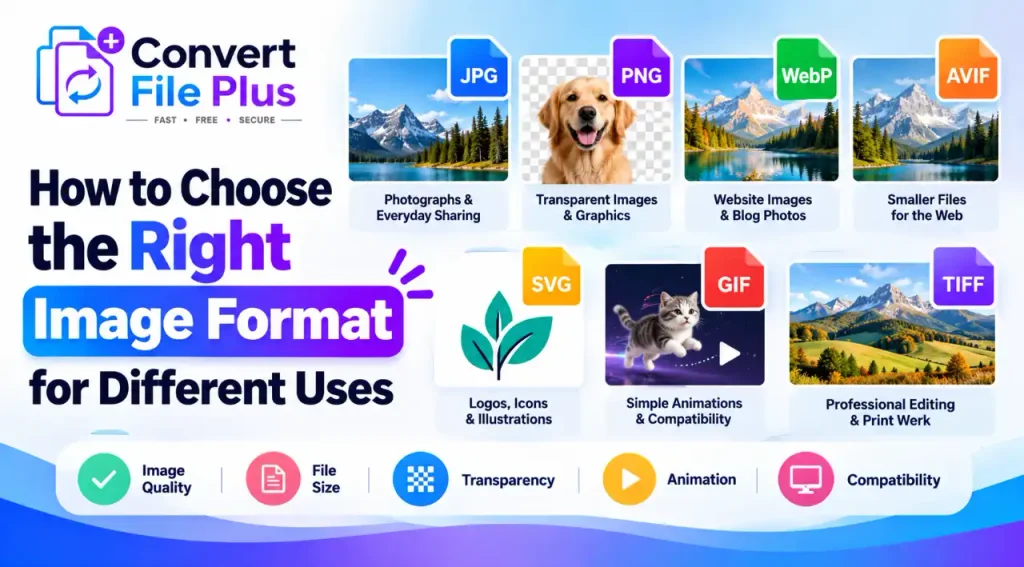
The right image format depends on what the image is for: JPG for photographs and everyday sharing, PNG for transparency or exact pixels, WebP or AVIF for efficient web delivery, SVG for logos and icons, GIF for simple animation, and TIFF for print and editing workflows. These are starting points, not rules, because the image itself, the destination, and the software all matter.
The costly mistakes tend to be quiet ones. Converting a JPG to PNG does not bring back detail the JPG already discarded, and a smaller file is not automatically a better one. Here is how to decide.
Quick Guide: Which Image Format Should You Choose?
| Image format | Best suited for | Main advantage | Main limitation |
|---|---|---|---|
| JPG/JPEG | Photographs and everyday sharing | Small files for photos; opens almost everywhere | Lossy; no transparency; weak for sharp text and line art |
| PNG | Screenshots, graphics, transparent images | Lossless, with full transparency | Larger files, especially for photos |
| WebP | Website photos and graphics | Lossy and lossless modes, transparency, animation | Some older software and platforms may not accept it |
| AVIF | Website images where file size matters | Generally strong compression; transparency; HDR | Slower to encode; needs a fallback for older browsers |
| SVG | Logos, icons, diagrams | Stays sharp at any size | Poor fit for photos; not accepted everywhere |
| GIF | Simple animations, legacy compatibility | Works nearly everywhere | Limited to 256 colors; animated files can be large |
| TIFF | Scans, professional editing, print files | High-quality source files; supports print color spaces | Large files; most browsers cannot display it |
Understand the Difference Between Image Formats
A few ideas explain nearly every recommendation below.
- Lossy vs. lossless.Lossy compression discards some image data to make files smaller. JPG, lossy WebP, and lossy AVIF work this way. Lossless compression reproduces the original pixels exactly, as PNG does. MDN notes that lossless suits screenshots, diagrams, logos, and line art, where blur and colored fringes around sharp edges are easy to see. Photographs usually tolerate lossy compression better.
- Raster vs. vector. Raster formats store a grid of pixels, so enlarging them looks jagged or blurry. Vector formats such as SVG store shapes and stay sharp at any size, as web.dev explains.
- Transparency and animation. JPG has no transparency. PNG, WebP, and AVIF do, and GIF, WebP, AVIF, and APNG can animate.
- Destination. A format is only useful if the place you send it accepts it.
One more point: renaming photo.jpg to photo.png does not convert it. The extension is only a label. The encoded data underneath is unchanged, so the file may fail to open or upload. Real conversion re-encodes the image in the new format.
Which Image Format Is Best for Different Uses?
Photographs and Everyday Sharing
JPG is the safe default for photos you email, message, or upload. MDN describes it as the most widely used lossy format for still images, and every major browser supports it.
It is a weaker choice for screenshots, charts, or anything with crisp text, because lossy compression can leave visible artifacts around sharp edges. If you plan to edit a photo repeatedly, keep the original rather than re-saving JPG copies.
Transparent Images, Product Cutouts, and Graphics
PNG is lossless and supports full transparency, which makes it a common choice for product cutouts, logos exported as images, and graphics with text. The trade-off is size: web.dev warns that PNG’s quality comes at a significantly higher file size than other formats, so use it judiciously.
Transparency also depends on the whole workflow. Exporting a transparent image as JPG fills the empty area with a solid color. Some platforms also flatten uploads, so check the image in its final location. On websites, WebP and AVIF can carry transparency too, often at smaller sizes.
Website Images and Blog Photos
For website images, WebP and AVIF can reduce file sizes compared with older formats, depending on the image and encoding settings. Choose the format based on visual quality, browser and platform support, and your site’s delivery setup. Where compatibility is a concern, provide an appropriate fallback. MDN reports that lossy WebP averages 25 to 35 percent smaller than comparable JPG files, and that AVIF generally compresses better than WebP.
Treat those figures as averages, not promises. Results depend on the source image, the encoder, and the quality setting. AVIF also lacks progressive rendering and has less historical browser support, so keep a fallback.
Size still matters in pixels. Raster images do not scale up cleanly, and web.dev recommends serving responsive versions instead of one oversized file.
Logos, Icons, and Illustrations
SVG suits logos, icons, and diagrams because it redraws shapes at any size. MDN advises preferring the SVG version of an icon whenever one exists.
Two cautions apply. First, a logo saved only as a small PNG cannot become a true vector by changing its extension; you need the original vector file. Second, not every destination accepts SVG, and MDN notes that extra restrictions apply when SVG is used as an image. When a platform refuses it, export a PNG at a generous size.
Simple Animations
GIF is limited to 256 colors but works almost everywhere. For new web work, MDN suggests considering WebP, AVIF, or APNG for animation, and web.dev goes further, recommending video because GIFs produce significantly larger files.
Still, not every platform accepts every animated format. If a destination only takes GIF, use GIF and keep the clip short and small.
Professional Photography, Editing, and Print Workflows
TIFF was created for scanned photos and supports color spaces such as CMYK, which is why MDN calls it a good choice for images intended for print. Compression varies. Files can be uncompressed, losslessly compressed, or even JPEG-compressed, so “TIFF” alone does not guarantee lossless quality.
The best delivery format is the one your printer, editor, or publisher specifies. Ask for their file requirements before exporting. And convert TIFFs before web use, since browsers other than Safari do not display them natively.
JPG vs PNG vs WebP vs AVIF: What Actually Matters?
- Quality: Lossless modes (PNG, lossless WebP or AVIF) keep every pixel. Lossy modes trade some detail for size, and the loss is easiest to spot around text and sharp edges.
- File size: Newer formats often win, but not always. A well-tuned JPG can beat a carelessly encoded AVIF.
- Transparency: PNG, WebP, and AVIF support transparency, and SVG can include transparent areas. JPG does not support transparency. GIF supports only fully transparent or fully opaque pixels, not partial transparency.
- Compatibility: JPG and PNG open nearly everywhere. WebP and AVIF are well supported in modern browsers but may be rejected by older apps and some upload forms.
- Sharing and editing: JPG and PNG are the easiest to open, edit, and send.
Two myths are worth correcting. Converting JPG to PNG cannot restore detail already discarded, because the loss happened when the JPG was made. And converting an already compressed JPG into another lossy format applies a second round of compression, which can add artifacts without a guaranteed size saving.
A conditional rule of thumb: JPG for general photos, PNG for transparency or exact pixels, WebP or AVIF for optimized website delivery, and SVG when you have a vector source.
Common Image-Format Mistakes to Avoid
- Picking a format because the extension looks familiar. Decide by purpose and destination first.
- Using PNG for every photograph. Files get large. Use JPG, or WebP or AVIF on the web, unless you need transparency or exact pixels.
- Converting JPG to PNG to “improve quality.” It will not. Go back to the original file if you need better quality.
- Using a raster logo when a vector exists. Request the SVG or original vector so the logo stays sharp at every size.
- Uploading oversized images. Resize to the dimensions you actually display.
- Ignoring transparency, animation, or compatibility. Confirm the destination supports what your file needs.
- Re-saving lossy images repeatedly. Edit from the original and export once.
- Assuming a successful conversion preserved everything. Open the result and check edges, text, transparency, and colors.
How to Choose the Right Image Format in Three Steps
- Identify the purpose. Is it for the web, sharing, design, animation, editing, or printing?
- Identify the essential requirement. Is it image quality, small file size, transparency, scalability, or compatibility?
- Choose a format, then verify it. Export, open the file, and test it in the place where it will actually be used.
Frequently Asked Questions
Conclusion
Choosing the right image format comes down to a few questions: what the image is for, how much quality you need, whether it needs transparency, how small the file must be, and where it will be used. Answer these questions, and choosing the right format becomes much easier.
When converting an image, start with the best original available. Then open the converted file in its intended destination to check its appearance, transparency, and compatibility before publishing or sharing it.

- How Image Compression Can Help Website Performance - October 18, 2026
- How Does an AI Image Upscaler Improve Image Resolution? - October 17, 2026
- How to Compress Images for WordPress Without Losing Quality Free - October 17, 2026