
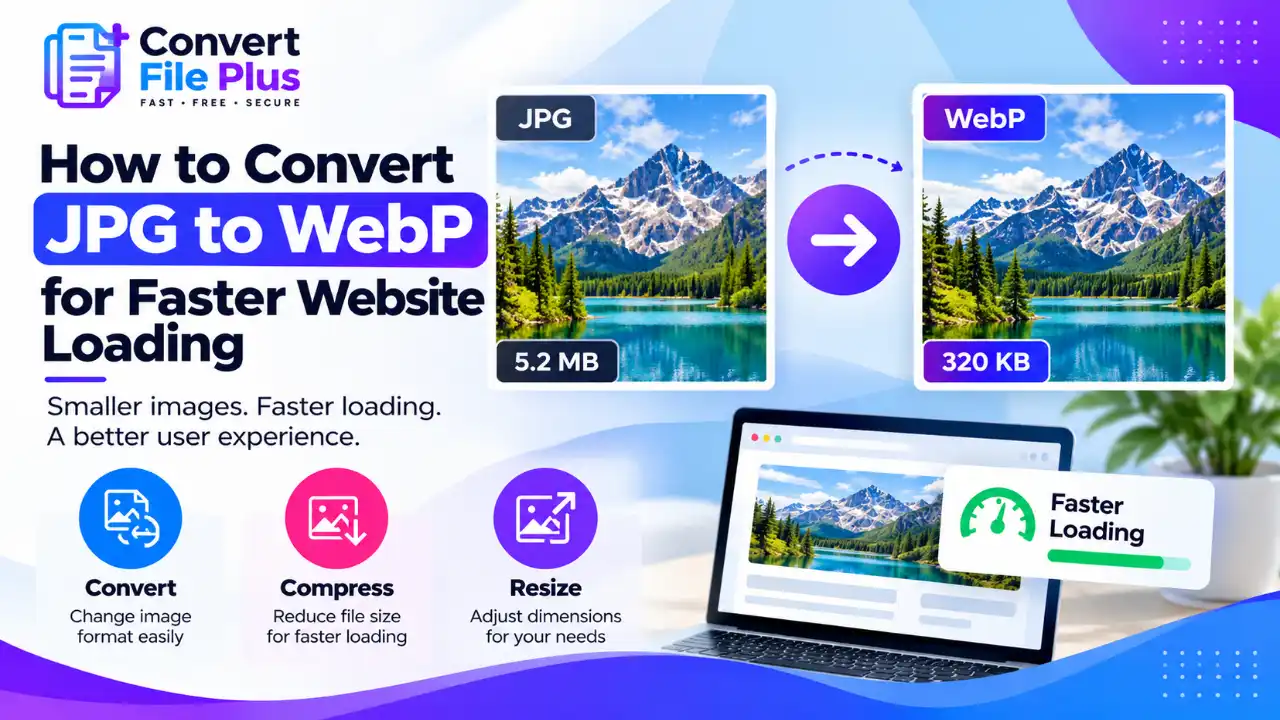
If your website images are slowing down page loading, converting JPG files to WebP may help reduce their file size. The key is to choose a suitable quality setting, compare the converted image with the original, and publish it correctly with a JPG fallback where needed.
Google reports that lossy WebP files are 25–34% smaller than comparable JPEGs at an equivalent quality index, but your actual savings will depend on the image and conversion settings. Smaller files can help, but they do not guarantee a faster page. Google reports that lossy WebP files are 25-34% smaller than comparable JPEGs at an equivalent quality index, though your own savings will vary by image.
Smaller files help, but they are not a guaranteed speed fix. This guide shows how to convert, how to publish safely, and how to check whether your pages actually improved.
What Changes When You Convert JPG to WebP
WebP is an image format developed by Google that offers lossy and lossless compression, transparency, and animation. The 25-34% figure comes from Google’s own comparison at matching SSIM quality, a measure of structural similarity. It is a useful benchmark, not a promise for every file.
One point is easy to miss: a JPG is already lossy. If you convert it to lossy WebP, the encoder works from pixels that have already lost detail, then discards a little more. Converting cannot bring back detail the JPG threw away.
So start from the original photo when you have it, and keep your JPGs as backups.
WebP is supported by all major modern browsers, so browser compatibility is less of a concern for most websites. However, older browsers and some applications may have limitations. If you need to support those environments, use a JPG fallback. Our guide to choosing an image format explains how WebP compares with other formats. Our guide to choosing an image format covers how WebP compares with other formats.
Choose a Conversion Method
| Method | Best for | Watch out for |
|---|---|---|
| Online converter | A few images, no installation | Check file limits, the privacy policy, and what the quality setting does |
| Image editor export | People already editing photos | Not every editor exports WebP, so check yours |
| cwebp (Google’s command-line tool) | Developers and large folders | Needs the command line; quality runs 0 to 100 |
| Imagemin WebP plugin | Sites with build scripts | Needs a project build setup |
| CMS or WordPress plugin | Ongoing uploads | Check free-plan limits and compatibility |
No method is best for everyone. For one-off conversions, an online tool is usually the quickest.
Step-by-Step: Convert JPG to WebP
- Gather your originals. Use the highest-quality version of each photo, and keep a copy.
- Resize if needed. If an image is far larger than the space it fills, reduce its dimensions first. Smaller dimensions cut bytes before any format change.
- Choose a method from the table above.
- Choose a quality setting and compare the result. For lossy WebP, the quality scale commonly runs from 0 (lower quality) to 100 (higher quality) in tools such as Google’s
cwebp. Start with a higher setting, then reduce it gradually until you find a balance between file size and visible quality. The ideal setting depends on the image and the encoder, so do not treat one number as a universal rule. For example, cwebp -q 80 photo.jpg -o photo.webp converts at quality 80, and 80 is only an example, not a rule. If your converter offers lossless WebP, it preserves the decoded source image’s pixel values during lossless encoding. However, because a JPG is already a lossy format, lossless WebP cannot restore detail that was lost earlier. The resulting WebP file may also be larger than the original JPG, so compare both file size and image appearance. - Convert and download.
- Compare the result. Check the file size, then view both images at 100% zoom, looking at sky gradients, text edges, and skin tones.
- Publish with a fallback (see the next section).
- Verify on the live page. Lighthouse and Chrome’s image-delivery insight can flag images that could be smaller or in a better format.
For a one-off conversion, you can try the ConvertFilePlus JPG to WebP converter. Choose the available conversion option, download the result, and compare its file size and appearance with your original before publishing it. Check the tool page for the current file-size and usage limits.
Publish WebP Safely: Fallbacks and WordPress
The standard approach, described by web.dev, uses a <picture> element:
<picture>
  <source srcset="flower.webp" type="image/webp">
  <img src="flower.jpg" alt="Describe the image here">
</picture>
Browsers use the first source they support, and fall back to the <img> tag if none match. List WebP first, always include the <img> last, and keep its file in a universally supported format such as JPEG.
If your server can rewrite requests based on the Accept header, web.dev describes a way to serve WebP automatically, with a Vary: Accept header so caches behave correctly. That route suits developers.
WordPress: WordPress: WordPress 5.8 introduced support for uploading and using WebP images, provided the server’s image-processing library supports the format. If your upload fails, check whether your hosting environment supports WebP before troubleshooting the file itself. See the official WordPress 5.8 WebP announcement for details. For more on image optimisation in WordPress, read our guide to compressing images for WordPress. For more on Media Library workflows, see our guide to compressing images for WordPress.
Will WebP Make Your Site Faster?
Converting JPG to WebP can reduce image file size, which may shorten download time when the image is a significant part of the page’s loading work. Google reports that lossy WebP files are 25–34% smaller than comparable JPEGs at an equivalent quality index. Your actual result may differ depending on the image, encoder, and quality setting. Treat this figure as a benchmark, not a guaranteed reduction.
A smaller image does not automatically make the whole page faster. Server response time, when the browser discovers the main image, and other page resources can also affect Largest Contentful Paint (LCP). Measure your page before and after making the change.
But web.dev’s field data shows that for most sites with slow Largest Contentful Paint, downloading the image is a small share of the total time. Server response and late discovery of the main image often cost more.
So convert, then measure before and after. Our guide to how image compression affects website performance explains how to find out where your page loses time.
Common Mistakes and Troubleshooting
- Renaming .jpg to .webp. This does not convert the file. web.dev notes that a file’s MIME type and extension are different things, so run a real conversion.
- Pushing quality too low. If images look blotchy, raise the quality and reconvert from the original.
- Converting a JPG that is already heavily compressed. Expect limited gains and possible artifacts. Use the original if you can.
- The WebP file is larger. Try a lower quality, smaller dimensions, or keep the JPG for that image.
- Skipping the fallback. Add the <picture> markup so older browsers still show an image.
- WordPress upload errors. Your host’s image library may not support WebP, so ask your host.
- Deleting originals. Keep them in case you need another format later.
Frequently Asked Questions
Conclusion
Start with one image from your original files. Convert it to WebP, compare the output’s size and visual quality, and publish it with an appropriate JPG fallback if needed. Then measure your page performance before and after the change rather than assuming that a smaller image guarantees faster loading.
Ready to test one image? Try the ConvertFilePlus JPG to WebP converter and review the result before converting the rest of your images.
Sources and References
- Google, WebP: An image format for the Web: https://developers.google.com/speed/webp/
- web.dev, Use WebP images: https://web.dev/articles/serve-images-webp
- web.dev, Common misconceptions about how to optimize LCP: https://web.dev/blog/common-misconceptions-lcp
- Chrome for Developers, Improve image delivery: https://developer.chrome.com/docs/performance/insights/image-delivery
- WordPress Core, WordPress 5.8 adds WebP support: https://make.wordpress.org/core/2021/06/07/wordpress-5-8-adds-webp-support/
This guide is based on the sources above. It does not include our own conversion tests.

- How to Increase the Resolution of an Image in 5 Steps - October 24, 2026
- 8 Best AI Background Removers in 2026 (Free & Paid, Compared) - October 23, 2026
- How to Convert HEIC to JPG on Windows (Step-by-Step Guide) - October 21, 2026