
I know someone who spent 45 minutes every single morning copying data from email into a spreadsheet. Same columns. Same format. Every day. When I told her an AI workflow could do that in under 30 seconds – and she didn’t need to write a single line of code – she genuinely didn’t believe me.
That’s where most people are right now. They’ve heard about AI. Maybe used ChatGPT to write something once. But actually using it to automate tasks with AI, in a way that saves real time every week? That part hasn’t clicked yet.
This guide is about making it click. No theory. No buzzwords. Just a clear, step-by-step walkthrough of how to find the right tasks, pick the right tools, and build your first automation – even if you’ve never done anything like this before. According to McKinsey, roughly 60% of jobs have at least 30% of tasks that can be automated with current technology. So the opportunity is real. You’re probably just not tapping into it yet.
Read Also : Best Cameras for Beginner Photographers in 2026
First, Why Most People Don’t Actually Automate Anything
It’s not laziness. And it’s usually not a lack of interest.
The real problem is that “AI automation” sounds like something you need an engineering degree for. Tools, APIs, code – it all sounds intimidating. So people put it off.
But here’s the thing: the tools have caught up with normal people. Platforms like Zapier, Make, and n8n have been around for years to connect apps without code. What changed recently is the AI layer on top. Now instead of rigid “if this, then that” rules, you can build automations that actually read, understand, and respond to information. Your email inbox. Your customer feedback. Your weekly reports.
That’s a fundamentally different thing from what automation used to mean. And it’s why it’s finally worth your time to figure out.
Step 1: Find the Task That’s Quietly Eating Your Time
Don’t start with a tool. Start with a piece of paper.
Write down everything you did last week that felt repetitive. Not just the obvious stuff – email and data entry – but the smaller things too. The Monday morning report you reformat every single time. The follow-up emails that all say basically the same thing. The meeting notes you summarize and paste into Slack.
A quick test to figure out if something is worth automating:
• Does it happen more than once a week?
• Does it take longer than 15 minutes each time?
• Are you doing the same steps in the same order, every time?
• Could you write down exactly how to do it and hand it to someone else?
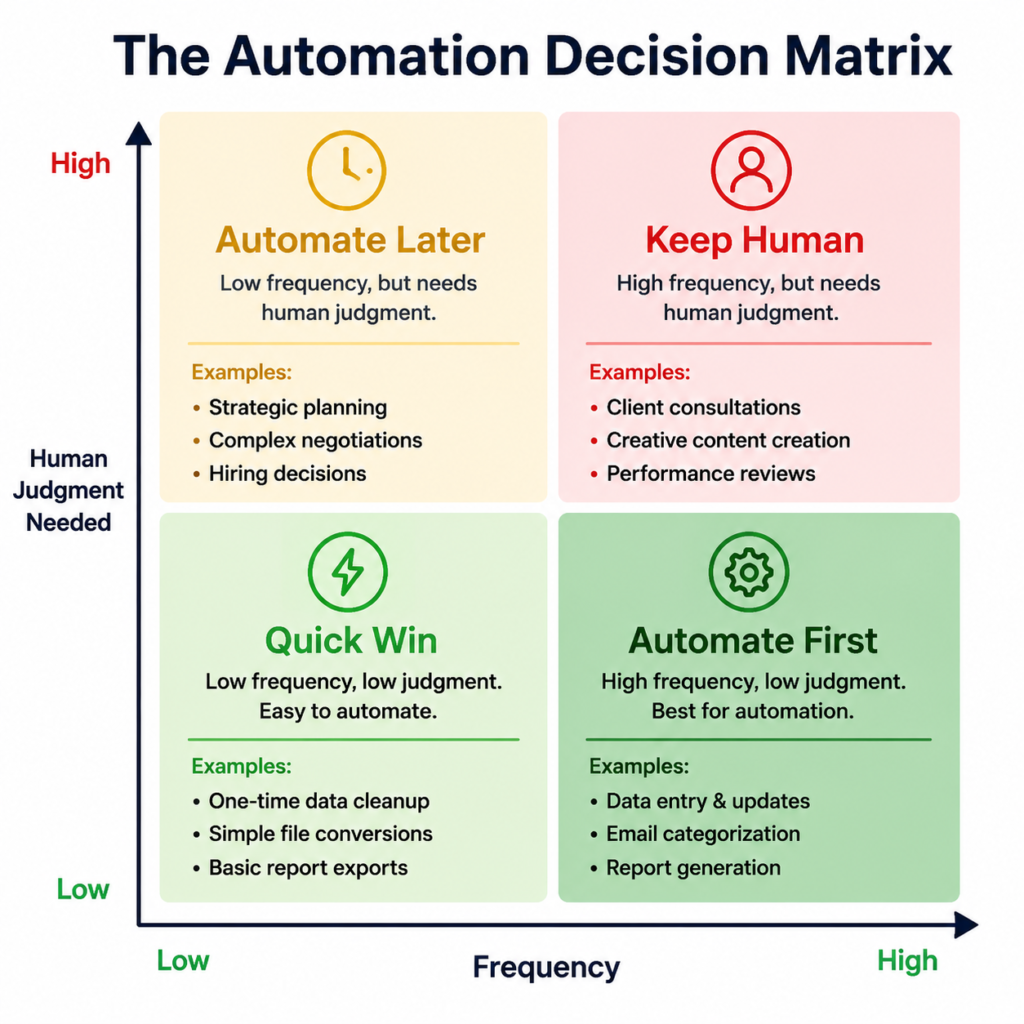
If you answered yes to most of those – that’s your task. The sweet spot for AI automation is high frequency, low judgment work. Not creative decisions. Not strategy. Just the stuff that’s predictable enough that a well-written prompt can handle it.
Most people I’ve talked to find their task in under five minutes. The hard part isn’t identifying it – it’s believing it can actually be fixed.
Step 2: Pick Your Tools – And Keep It Simple
There are dozens of AI automation tools out there, and most guides will list every single one. I’m not going to do that. Here’s what you actually need to start:
One workflow tool – to connect your apps and build the automation logic.
One AI model – to handle the reading, writing, classifying, summarizing.
That’s it. Two things.
For the workflow side:
• Zapier – easiest to start with, huge library of app integrations, good free tier
• Make – more flexible and visual, better for multi-step or branching flows
• n8n – open-source, self-hostable, great if you want full control
For the AI side:
• Claude or ChatGPT – both have APIs that plug into the workflow tools above
• Notion AI – if your team already lives in Notion, this is the easiest entry point
For browser-specific automation (automate browser tasks with AI):
• Bardeen – runs automations directly in your browser, no code, pulls data from websites and fills forms
• Browse AI – monitors web pages and extracts data on a schedule, great for competitive tracking
Honestly, pick Zapier and Claude to start. Get one thing working. Then expand.
Step 3: Build Your First Automation (Walk-Through)
Let me show you an actual example so this isn’t abstract.
Scenario: You get customer feedback through a Google Form. Right now you read each one manually, figure out if it’s positive, negative, or neutral, and then write a draft reply. Let’s automate that.
Here’s what the flow looks like:
• Trigger: New Google Form response comes in → Zapier catches it
• AI step: Send the response text to Claude with this prompt: “Read this customer feedback. Classify it as positive, neutral, or negative. Then write a 2-sentence reply. Return both as JSON.”
• Action: Parse the JSON – add a new row to your Google Sheet with the feedback, the classification, and the draft reply
• Optional: If classification = negative → send a Slack message to your team so someone can follow up
Setup time? About 90 minutes the first time, including figuring things out. After that, it runs completely on its own.
That’s the core pattern behind almost every AI automation: a trigger, an AI processing step, and an output. Once you’ve built one, the next one takes half the time.
Step 4: Write Prompts That Don’t Break Your Automation
Here’s where most people hit a wall.
They build the automation, run a test, and the AI gives back something weird – wrong format, extra explanation, something totally off. And they assume AI automation just doesn’t work.
Usually it’s the prompt. Here’s what I’ve learned from getting it wrong a lot:
Tell it exactly what format you want back. If you need JSON, say “return only JSON, no explanation.” If you need a bullet list, say so. The AI will give you whatever format you ask for – it just needs to be told.
Give it a concrete example. Instead of “classify this as positive or negative,” try: “Classify this feedback. Examples: ‘Great product’ = positive. ‘Broken on arrival’ = negative. ‘It’s okay’ = neutral. Return only the label.”
Tell it what NOT to do. Seriously. “Do not include any explanation. Do not add quotation marks. Return only the JSON object.” This sounds annoying but it saves you a lot of debugging.
Test with weird inputs. Before you switch the automation on permanently, throw 10 strange or edge-case inputs at it and see what breaks. Something always breaks. Better to find it in testing.
A 2024 Gartner report called prompt engineering one of the most important new skills for knowledge workers – not because it’s technically hard, but because small differences in wording lead to very different outputs. That’s doubly true when the output is going into an automated system.
Step 5: Set It, But Don’t Forget It
Automations are not fire-and-forget.
APIs change. Input formats shift. Someone sends in feedback with a weird character that breaks your JSON parsing. These things happen, and when they do, the automation quietly fails – often without telling you.
Build in a quick weekly check. Five minutes to scan your automation logs and make sure things are still running. Most tools have a log view that makes this easy.
Once something is stable, then expand it. Automate daily tasks with AI the same way you’d build any good habit – start with one, nail it, then add the next. Trying to automate ten things at once is how you end up with ten broken automations.
The people who actually get results from this are the ones who start small, check in regularly, and build incrementally. Not the ones who try to overhaul everything in a weekend.
The Mistakes I See People Make
Automating a messy process. If the task isn’t consistent yet – if you’re still figuring out how it should work – automating it just speeds up the chaos. Nail the process manually first, then automate.
Trusting the AI output blindly. AI makes mistakes. For anything client-facing or financial, build in a human review step, at least until you trust the accuracy.
Ignoring maintenance. An automation that worked six months ago might be broken today. Treat it like any other tool – check in on it.
Going too big, too fast. A 15-step automation is much harder to debug than three 5-step ones. Keep things modular and simple, especially at the start.

- Difference Between Image Resolution and Image Size: Complete Guide (2026) - July 13, 2026
- How Much Does AI Software Cost for Startups in 2026? - July 7, 2026
- How to Use AI to Write Blog Posts Faster Without Losing Your Voice - June 28, 2026