
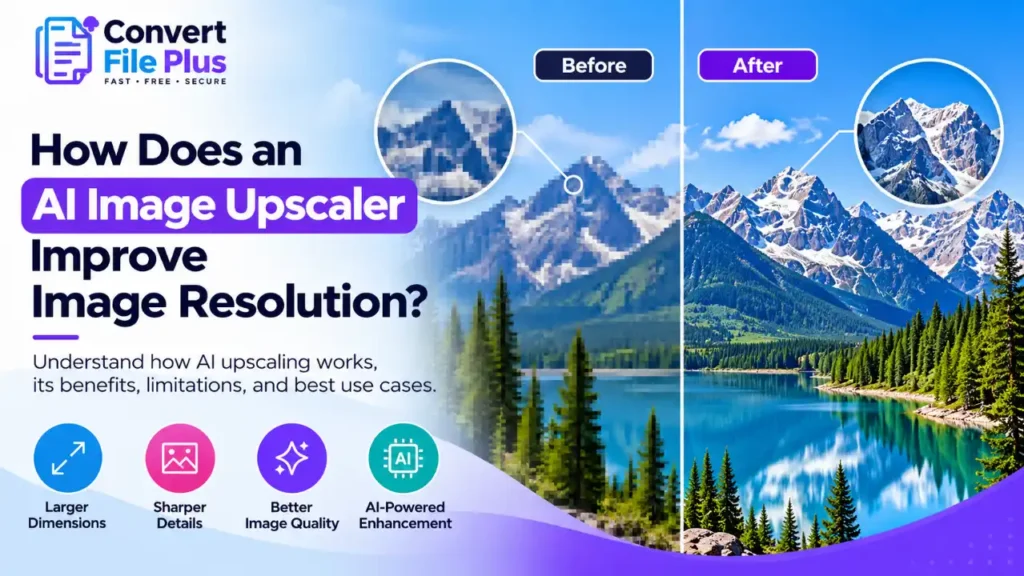
An AI image upscaler uses a trained model to enlarge an image by predicting additional pixels. Many models learn from low- and high-resolution image pairs, while their training methods and architectures can differ. Unlike conventional resizing, AI upscaling can generate plausible edges and textures, but the added detail is an estimate rather than information recovered from the original scene.
That distinction matters whenever you enlarge a small photo for a print, a tight crop, or an old file. This guide explains how AI upscaling works, how it differs from normal resizing, where it falls short, and how to check your results.
What “Improving Resolution” Actually Means
People use “resolution” loosely. Pixel dimensions are an image’s width and height in pixels, and upscaling raises that count. It does not automatically make the image look sharper, because sharpness depends on the detail those pixels contain. Our guide to image resolution and image size explains the terms in more depth.
Adobe’s Super Resolution shows the scale involved. It creates an image with twice the width and height, which is four times the pixels, and Adobe’s example turns a 12-megapixel photo into 48 megapixels. Those new pixels still have to be filled with something, and that is where methods differ.
How Conventional Resizing Fills in New Pixels
Standard enlargement is called resampling. The software calculates each new pixel from the values of nearby existing pixels, a process known as interpolation. Adobe’s resampling documentation lists several methods. Bilinear gives softer results, Bicubic Smoother aims for smooth transitions, and Preserve Details 2.0 is built for enlarging and keeps sharp edges and fine detail with fewer artifacts.
All of these work only from pixels already in the image. They can smooth or sharpen, but they have no way to know what a fabric weave or a strand of hair should look like.
How an AI Upscaler Works
Most AI upscalers build on research called super-resolution. In outline:
- Training. A model learns from many pairs of low- and high-resolution versions of the same image. The original SRCNN paper describes learning a direct mapping from low to high resolution with a convolutional neural network. Adobe says its model was trained by analysing millions of images.
- Realistic degradation. Real photos are noisy, compressed, and blurred in unpredictable ways. The authors of Real-ESRGAN trained their model on synthetic images made by simulating complex real-world degradations, so it could handle everyday pictures.
- Prediction. You provide an image. The model examines patches of pixels and predicts a higher-resolution version, outputting an image with more pixels.
- Adversarial training (in many models). GAN-based models such as ESRGAN and Real-ESRGAN pair a generator, which creates upscaled images, with a discriminator, which learns to tell them from real photos. That pressure pushes the output toward realistic texture.
Tools differ in their models, training data, and settings, so two upscalers can give different results from the same file.
Why the Added Detail Is Plausible, Not Recovered
Blau and Michaeli proved mathematically that distortion (how far the output is from the true image) and perceptual quality (how natural it looks) are at odds. They also showed that GANs offer a principled way to approach the best tradeoff. In practice, an upscaler tuned to look sharp and natural may add details that look right but were never in the scene.
What that means for you:
- Natural textures such as foliage, sky, and fabric often tolerate this well.
- Faces, small text, logos, and numbers need extra checking because a convincing but incorrect detail can change a person’s appearance or make text and symbols inaccurate.
- Do not rely on AI-generated details for evidence, measurements, official documents, or other situations where fidelity to the original image is essential.
- For product listings, technical diagrams, and text-heavy graphics, compare the output with the original before publishing or sharing it.
When AI Upscaling Helps and When It Doesn’t
It tends to help when:
- You need more pixels for a larger print. Adobe pitches its tool for this.
- You have cropped tightly and the remaining image is small.
- You are working with older, lower-resolution camera files.
It tends not to help when:
- The image already has enough pixels for its use.
- The source is extremely small or badly degraded. The less real information there is, the more the model must guess.
- Exact detail matters more than appearance.
AI Upscaling vs Traditional Resizing
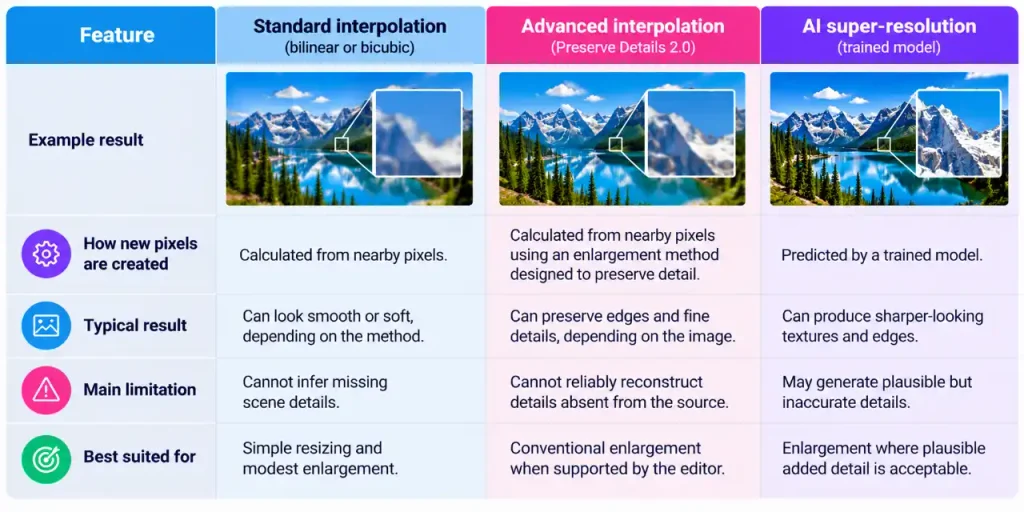
Which looks better depends on the image, so compare on your own file.
How to Upscale an Image and Check the Result
The controls vary by tool, so follow the options yours provides.
- Keep the original. Work on a copy.
- Start with the best source you have. Use the largest, least-compressed version, ideally not a screenshot of a screenshot.
- Decide your target size. For example, an 8 × 10 inch print at 300 pixels per inch needs 2,400 × 3,000 pixels. That 300 figure is a common printing assumption, not a universal rule.
- Choose a modest scale factor. Enlarge only as much as you need, because higher factors give the model more to guess.
- Run the upscaler and download the result.
- Inspect at 100% zoom. Look at faces, text, edges, and repeated patterns.
- Save in a suitable format and keep the original. Our image format guide explains your options.
If your goal is simply to change an image’s width or height, try the ConvertFilePlus image resizer. Resizing changes pixel dimensions, but it does not necessarily add realistic detail. If you need AI-powered enhancement, choose a tool that explicitly supports AI upscaling and inspect the result for artifacts.
Common Mistakes and Troubleshooting
- Expecting recovered detail. Treat the result as an enhancement, not a restoration.
- Enlarging a tiny image by a huge factor. Try a smaller factor, or a better source.
- Accepting waxy skin or strange textures. Lower the scale factor, try another tool, or compare with a conventional resize.
- Distorted text or logos. Redo them as real text or vector artwork instead.
- Halos or over-sharpened edges. Adobe suggests fine-tuning sharpening and noise reduction after enlarging.
- Skipping the 100% check. Problems often hide at normal zoom.
- Ignoring file size. More pixels usually mean a larger file. See our guide to reducing file size without blur.
Frequently Asked Questions
Conclusion
AI upscaling can make a small image look sharper by predicting additional pixels, but it cannot guarantee that the new details match the original scene. Start with the highest-quality source available, enlarge only as much as necessary, and inspect faces, text, edges, and textures at full size. If exact accuracy matters, preserve the original and do not rely on AI-generated details as evidence.
Sources and References
- Adobe, Super Resolution: https://www.adobe.com/products/photoshop-lightroom/super-resolution.html
- Adobe, Resampling options in Photoshop: https://helpx.adobe.com/photoshop/desktop/crop-resize-transform/resize-adjust-resolution/resampling-options.html
- Dong, Loy, He, and Tang, Image Super-Resolution Using Deep Convolutional Networks: https://arxiv.org/abs/1501.00092v2
- Wang, Xie, Dong, and Shan, Real-ESRGAN: https://arxiv.org/abs/2107.10833v2
- Blau and Michaeli, The Perception-Distortion Tradeoff (CVPR 2018): https://openaccess.thecvf.com/content_cvpr_2018/html/Blau_The_Perception-Distortion_Tradeoff_CVPR_2018_paper.html
This guide is based on the published research and vendor documentation above. It does not include our own comparison tests.

- How Image Compression Can Help Website Performance - October 18, 2026
- How Does an AI Image Upscaler Improve Image Resolution? - October 17, 2026
- How to Compress Images for WordPress Without Losing Quality Free - October 17, 2026