
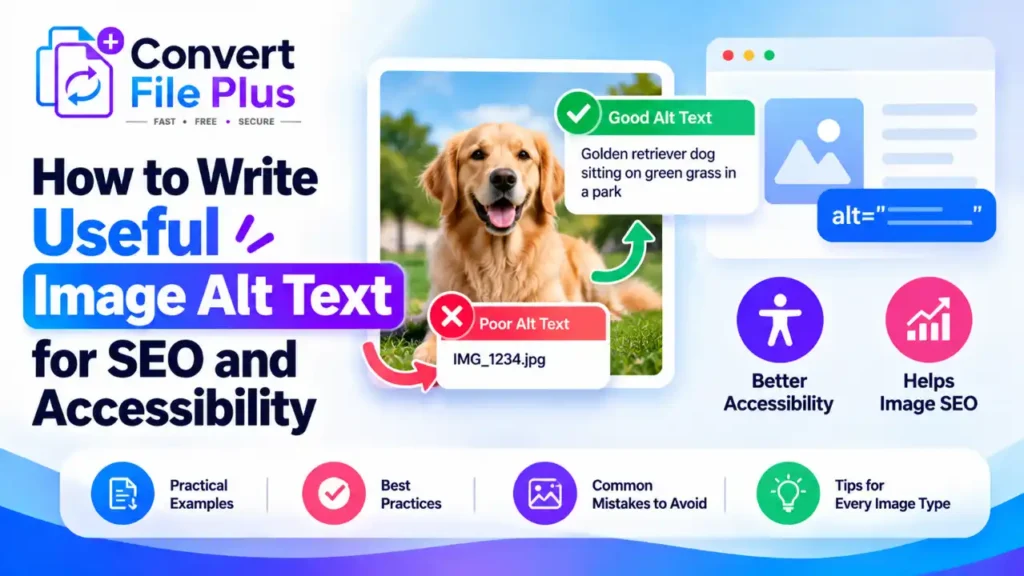
Useful alt text describes the information or function an image adds to a page, briefly and in the context where it appears. That helps people who cannot see the image, and it gives search engines a clearer picture of what the image shows.
In practice, alt text usually goes wrong in three ways: it is left empty on important images, written too vaguely, or stuffed with keywords. The method below avoids all three.
What Is Image Alt Text?
Alt text is alternative text supplied in an image’s HTML alt attribute. It stands in for the image when the image can’t be seen or doesn’t load. Screen readers may announce it to people using assistive technology, and Google says it uses alt text together with computer vision and the page’s content to understand an image.
It is not a caption (visible text near the image), a filename, a tooltip, or an image title. Those serve other purposes, and none of them replaces the alt attribute.
Here is a quick comparison for a photo of a mug on a desk:
- Vague: alt=”cup”
- Useful: alt=”Ceramic coffee mug beside an open laptop on a wooden desk” (if that is what the image shows and why it is on the page)
Why Does Alt Text Matter for SEO and Accessibility?
Accessibility
- It conveys relevant image information to people who can’t see the image, including screen reader users and people whose images fail to load.
- It communicates the purpose of functional images, such as a linked image or button. W3C’s Images Tutorial says the text should describe the function, not the picture.
- It keeps important information from existing only visually.
Image SEO
- Google identifies alt text as an important way to provide context about an image. For linked images, the alt text can also help communicate the link’s purpose, much like descriptive anchor text.
- It works alongside short descriptive filenames, nearby text, and a relevant page.
Neither Google’s nor W3C’s guidance promises a ranking boost. The point of alt text is to communicate. Any SEO benefit should come from accurate description, not keyword manipulation.
How to Write Good Alt Text: A Practical Method
Step 1: Identify the image’s purpose. Is it informative, decorative, functional, a chart, or an infographic? W3C’s alt decision tree walks through the choices.
Step 2: Describe the important information. Include what a reader needs in this context, not every visual detail. For a product photo on a shop page, the product type, color, and view usually matter. The background usually doesn’t.
Step 3: Consider the surrounding content. The same photo may need different alt text depending on its purpose on the page. If the image provides information that is not available elsewhere, describe that information. If it is purely decorative or repeats information already communicated nearby, an empty alt attribute (alt=””) may be appropriate.
Step 4: Keep the wording natural and concise. Skip openings like “image of” or “graphic of.” WebAIM notes that screen readers already announce the element as an image. WebAIM adds that a few words are typically enough, and rarely a short sentence or two.
Step 5: Test it without the image. WebAIM suggests asking: “If I could not use this image, what would I put in its place?” If someone hearing only your alt text would miss the point, revise it.
Image Alt Text Examples: Before and After
These examples are illustrative and assume the images show what is described.
| Image type | Weak alt text | Better alt text | Why it is better |
|---|---|---|---|
| Product photograph | “shoes” | “Navy canvas low-top sneaker with a white sole, side view” | Names the item, color, and view a shopper cares about |
| Mountain or travel photograph | “mountain” | “Snow-capped peak above a calm alpine lake at sunrise” | Conveys the scene’s key elements, not just one object |
| Chart or infographic | “chart” | “Line chart showing monthly website visits rising from January to June” | States the main takeaway and points to the full data |
| Screenshot containing instructions | “screenshot” | “Settings menu with the Export option highlighted” | Describes the point of the screenshot; the steps themselves belong in page text |
| Linked image used as navigation | “right arrow” | “Next article” | Describes what the link does, not what it looks like |
Should You Include Keywords in Image Alt Text?
Only when a keyword accurately describes the image and fits the page naturally. Google’s guidance says to create useful, information-rich alt text that uses keywords appropriately, and warns that stuffing them creates a poor user experience and may cause a site to be seen as spam.
Here is an illustrative contrast:
- Stuffed: “image compressor image compression SEO best image compressor online”
- Better: “Online image compression tool showing the original and reduced file sizes”
The better version describes what the image shows instead of listing search terms. Don’t add your main keyword to every image on a page. Most images won’t naturally need it.
How Long Should Image Alt Text Be?
There is no universal character count. Use enough words to convey the relevant information and no more.
- Simple images usually need only a short phrase.
- Complex charts may need brief alt text plus a fuller explanation in the page text or a data table.
- Functional images should communicate their purpose or destination.
- Repeating nearby text makes alt text less useful.
Some accessibility checkers flag text over roughly 100 characters as a rule of thumb. That is a tool heuristic, not a standard, and a shorter alternative paired with page text is often the better fix.
Should Every Image Have Alt Text?
WebAIM recommends that every image have an alt attribute. What goes inside depends on what the image does. An empty alt=”” is different from leaving the attribute out entirely: the first tells assistive technology to skip the image, while a missing attribute may lead screen readers to read the filename instead.
- Informative images: Write a brief description of the information they add.
- Decorative images: Use alt=”” when the image adds no meaningful information. WebAIM also suggests using CSS for purely decorative images, which removes the need for alt text.
- Functional images: Describe the action or destination. For a logo that links home, WebAIM says the company name usually suffices.
- Complex images and charts: Give concise alt text and put the key data in the page text or a table.
- Images of text: W3C advises avoiding text in images unless it is a logo. If the text is essential and not available elsewhere, include it in the alt text, or use real HTML text instead.
Common Alt Text Mistakes to Avoid
- Leaving meaningful images without alt text. Describe what they contribute.
- Stuffing keywords. Write a plain description.
- Vague descriptions like “image” or “photo.” Say what the image shows.
- Reusing one description across unrelated images. Write each one for its own image.
- Writing overly long descriptions. Keep the essentials and move detail into page text.
- Describing decorative images. Use alt=””.
- Omitting a chart’s data. Add the numbers in text or a table.
- Using filenames as alt text. Replace “IMG_2043.jpg” with a real description.
- Trusting auto-generated text blindly. Review it before publishing.
Can AI Help You Write Image Alt Text?
AI can suggest descriptions, which is useful for large image libraries. But as WebAIM notes, algorithms may recognize what an image depicts without understanding what it means on a particular page. Tools can misidentify objects, miss context, or describe irrelevant details.
Review every AI-generated description. Check that it is accurate, reflects the image’s purpose on that page, includes the important details, doesn’t duplicate nearby text, and doesn’t contain unnecessary keywords.
Frequently Asked Questions
Sources and References
- Google Search Central, Image SEO best practices: https://developers.google.com/search/docs/appearance/google-images
- W3C Web Accessibility Initiative, Images Tutorial: https://www.w3.org/WAI/tutorials/images/
- W3C Web Accessibility Initiative, An alt Decision Tree: https://www.w3.org/WAI/tutorials/images/decision-tree/
- WebAIM, Alternative Text: https://webaim.org/techniques/alttext/
- Accessibility Checker Rules (University of Illinois FAE), Image 1 rule: https://fae.disability.illinois.edu/rulesets/IMAGE_1/
- How Image Compression Can Help Website Performance - October 18, 2026
- How Does an AI Image Upscaler Improve Image Resolution? - October 17, 2026
- How to Compress Images for WordPress Without Losing Quality Free - October 17, 2026