
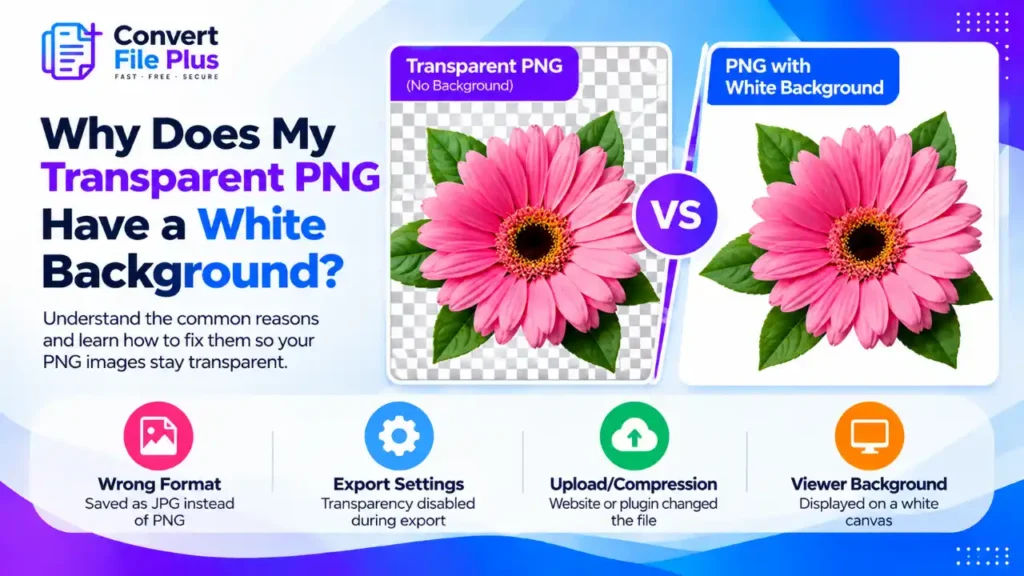
A transparent PNG may appear with a white background for two main reasons: the file has lost its transparency, or the app or website is displaying it against a white canvas. The solution depends on which problem you have.
Before editing the image, test it against a dark background. If the background remains white, check the file’s transparency and export settings. If the dark background shows through, the PNG is transparent and the white appearance comes from the viewer or page design.
Start With a Two-Minute Test
A PNG can store transparency in an alpha channel, an extra value per pixel that says how opaque it is. It doesn’t have to. A PNG with white painted into it is just a white image. And even a truly transparent image needs something behind it on screen, so the viewer chooses white, black, gray, or a checkerboard.
Run these checks in order:
- Put it over a dark background. Drop the file onto a dark or brightly coloured slide, canvas, or editor layer. If the dark colour shows around the subject, the file is fine.
- Check the checkerboard pattern. Many image editors use a checkerboard to indicate transparent areas. If you are unsure whether the pattern is part of the image, open the file in another editor or place it over a solid-colour background. If the squares remain visible as part of the picture, the pattern may have been saved into the image.
- Check the real format. A file extension is only a label, and renaming photo.jpg to photo.png doesn’t convert it. Right-click the file and look at its properties, or use the file command in a terminal if you’re comfortable with it.
- Test where it will be used. If the problem appears only after uploading, download the live file rather than judging a thumbnail.
| What you see | What it likely means | Go to |
| Dark colour shows through cleanly | File is fine; the viewer or page adds white | Cause 1 |
| White rectangle stays on the dark background | Transparency was flattened | Causes 2–4 |
| Checkerboard squares scale with zoom | Pattern is painted into the pixels | Cause 5 |
| Fine on your computer, white after upload | An upload step changed the file | Cause 4 |
Cause 1: The Viewer or Page Is Showing White
Photo viewers, file previews, documents, and web templates often place images on a white canvas. Nothing is wrong with the file. Change the background colour of the slide, page, or section and the subject will float on top of it.
Fix: none for the file. Don’t re-export a good PNG.
Cause 2: The Image Was Saved as a JPG
JPEG does not support transparency. When a transparent image is exported as JPEG, transparent areas must be replaced with a solid background colour, often white. The exact colour depends on the editor or converter’s settings.
Renaming a JPG file to .png does not restore transparency or convert its actual format.
Fix: Return to the original or layered file and export it as PNG with transparency enabled. If you only have a flattened JPG, you will need to remove the background again before saving a transparent PNG.
Cause 3: The Export Settings Filled It In
Editors often offer PNG export with a transparency option, and unticking it fills the empty area. Adobe Community experts point Photoshop users to the Transparency checkbox in File > Export > Export As. Menus change between versions, so look for the equivalent option in yours.
Two related traps:
- A solid layer behind the subject. If your editor has a white background layer, hide or delete it before exporting.
- PNG-8: Indexed-colour PNG generally supports binary transparency rather than the full range of partial transparency available in standard truecolour PNG. Soft shadows and semi-transparent edges may therefore look jagged or lose smooth transitions. For these images, use a PNG export setting that preserves alpha transparency, commonly PNG-24 or PNG-32 depending on the editor.
Fix: re-export from the original with transparency enabled and any background layer removed, then reopen the saved file and run the dark-background test.
Cause 4: An Upload or Optimization Step Changed the File
If the image is transparent on your computer but white once it’s on a website, check what happened in between. Some image-optimization tools or website workflows may convert PNG images to JPEG or serve a different processed version. Because JPEG cannot preserve transparency, such a conversion can produce a white or another solid-colour background.
Fix: Compare the original file with the image served by your website. Check its actual format and whether an optimization plugin, CDN, or upload workflow is changing it. If a conversion is responsible, adjust that workflow and restore the original transparent PNG before uploading it again.
Cause 5: The White or Checkerboard Is Part of the Picture
Screenshots of an editor, saved previews, and some downloaded or generated images carry a painted-in white background or checkerboard. The file has no transparent pixels at all. Saving a preview instead of using the site’s download button can cause this.
Fix: get the real file if there is one. If not, you’ll have to cut the background out. A “make white transparent” tool works well only when the white is uniform; off-white edge pixels cause trouble, so expect to refine edges. Our comparison of AI background removers lists free limits and file caps from each vendor’s own pages, though we did not test cutout quality.
What About White Edges Around a Transparent Subject?
If the subject is transparent but has a pale outline, the cutout was probably made against white and the edge pixels still carry some of it. A dark background makes this obvious. Look for a defringe, remove-matte, or edge-refinement option in your editor. If you redo the background removal, refine the selection around the subject rather than automatically shrinking it by a fixed number of pixels. This helps reduce white halos without unnecessarily cutting into the subject. This one is common in practice, but I found less direct documentation for it than for the causes above.
What You Can’t Fix
Converting a flattened JPG to PNG does not restore transparency because the white background is part of the image pixels. To create a transparent PNG, return to the original layered file or remove the background from the flattened image again.
How to Avoid It Next Time
- Keep the layered original and treat the PNG as an export.
- Choose PNG explicitly, and confirm transparency is on.
- Open the exported file over a dark colour before sending it anywhere.
- Re-test after upload. Our guide to choosing the right image format covers which formats keep transparency and which don’t.
- Name files clearly, such as logo-original and logo-transparent.
Frequently Asked Questions
Conclusion
Start by testing the PNG against a dark background. If transparency works, check the viewer or page background. If it does not, inspect the export settings, file format, and upload or optimization workflow. Keep the original file so you can create a fresh transparent PNG whenever needed.

- Why Is My Instagram Picture Blurry Before Posting? - November 2, 2026
- Why Do Images Look Blurry on Instagram After Uploading? How to Fix It - November 1, 2026
- Why Do Images Look Different on Different Screens? - October 31, 2026