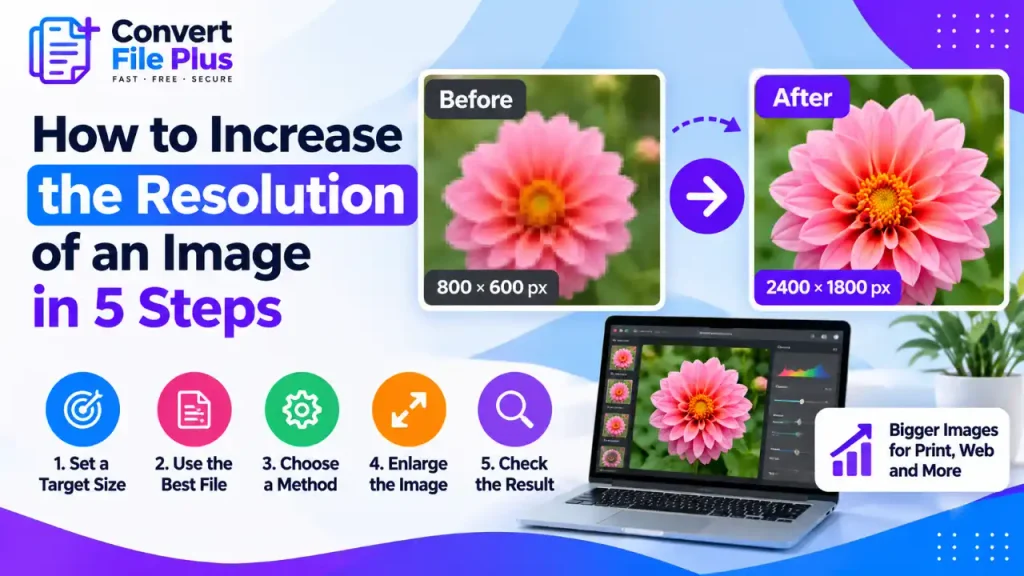
To increase an image’s resolution, enlarge its pixel dimensions using an image editor or AI upscaler. The result can be useful for printing, cropping, or displaying an image at a larger size, but enlargement cannot reliably restore details that were never captured.
That limit shapes the five steps below: set a target size, start with the best file, choose a method, enlarge, and check the result. Follow them and you get the best output your source allows. You will also know when a bigger file won’t help.
What “Increasing Resolution” Actually Means
Two different things get called resolution:
- Pixel dimensions are the image’s width and height in pixels, such as 1,200 × 800.
- PPI (pixels per inch) describes how densely those pixels are packed when printed.
Typing a higher PPI into an editor without resampling changes only the print size. The pixel count stays the same, so nothing gets sharper. To get a higher-resolution file, you need more pixels, which means resampling. Our guide to resolution and file size covers the terminology if you want more background.
A quick illustration: a 1,200 × 800 pixel image prints at 4 × 2.67 inches at 300 PPI. To print 6 × 4 inches at the same density, you need 1,800 × 1,200 pixels, which is 50% more in each direction.
Step 1: Work Out the Pixel Size You Need
Enlarging more than necessary only increases the guesswork the software has to do. Start with a target.
For print, multiply the print size in inches by the PPI your printer recommends. An 8 × 10 inch print at 300 PPI needs 2,400 × 3,000 pixels. The 300 figure is a common assumption, not a universal rule, so check your printer’s requirements.
For screens, use the size at which the image will be displayed, and allow extra for high-density displays.
For websites, avoid oversizing. Larger files load more slowly, and Google’s image guidance recommends balancing sharp images with fast pages.
If your image already has the pixels you need, stop here. You may need a better crop or light sharpening instead.
Step 2: Start With the Best Source File
Enlargement magnifies whatever is already in the file, including compression artifacts and noise. So look for the best version you have:
- the original camera file or first download, not a screenshot or a copy re-saved by a messaging app
- the largest, least-compressed version available
- a lossless file (PNG or TIFF) over a heavily compressed JPG, if both exist
Check the current dimensions in your file’s properties, and work on a copy so the original stays untouched. If the only version you have is a tiny thumbnail, no method will produce a good poster-size print. In that case, look for a larger original or rebuild the image from scratch.
Step 3: Choose a Method
Choose a resizing method based on how much larger the image needs to be and how much detail it contains.
| Method | How it works | Suits | Main limit |
| Standard resampling (bicubic and similar) | Calculates new pixels from neighboring ones | Modest enlargements | Looks softer as the factor rises |
| Enlargement-focused resampling (for example, Photoshop’s Preserve Details 2.0) | Algorithm designed for enlarging, with a noise-reduction control | Photos that need to be noticeably larger | Needs software that offers it; cannot recover real detail |
| AI upscaler (for example, Super Resolution in Lightroom or Photoshop, or an online upscaler) | A trained model predicts plausible detail | Prints, tight crops, older files | Added detail is a prediction, so faces and text need checking |
| Changing PPI only | Changes print size, not pixel count | Filling a PPI field a printer asks for | Does not increase resolution |
Logos, line art, and text-heavy graphics are a special case. If you have the original vector file (SVG, for example), use that instead, because vectors scale without pixelation. For how AI models work, see our explainer on how AI upscalers improve resolution.
Step 4: Enlarge the Image
The exact menus vary by software version, so follow your tool’s current options.
In Photoshop: open Image > Image Size, tick Resample, and enter the new width or height with the link between them on so proportions stay fixed. For enlarging, Adobe lists Preserve Details 2.0 as the dedicated option, and it includes a Reduce Noise slider. Automatic also works if you prefer to let Photoshop choose.
In GIMP (free): open Image > Scale Image, keep the chain link on, and choose an interpolation method. Cubic is a reasonable default. GIMP’s documentation also describes NoHalo and LoHalo, with the best choice depending on image content, so try two and compare. The interpolation list differs between versions, so confirm yours.
With an AI upscaler: upload the image, pick the smallest scale factor that reaches your target, and download the result. Check the service’s privacy policy and file-retention rules before uploading anything sensitive.
If you only need an exact pixel size and would rather not install software, you can set a target width and height in the ConvertFilePlus Image Resizer. Resizing changes the pixel count but does not restore lost detail, so judge the result using Step 5. Check the tool page for its current usage limits.
Step 5: Inspect at 100% and Save Carefully
Zoom to 100% and look closely at faces, text, edges, skies, and repeated patterns. Problems that hide at fit-to-screen size often show up here.
Then compare against a plain resize of the original. Occasionally the simpler method looks better, particularly on images with clean edges.
Fix common problems this way:
- Halos or crunchy edges: reduce sharpening, or reduce the scale factor.
- Waxy, smoothed texture: try a different method or a smaller enlargement.
- Distorted letters or logos: recreate them as real text or vector artwork.
A light touch of sharpening can help after enlarging, but too much creates halos.
Save the result as a new file. Use PNG or TIFF while you’re still editing, and JPG or WebP for delivery. A larger image means a larger file, so compress it afterward and recheck the quality. Our guide to reducing file size without blur shows how.
Common Mistakes to Avoid
- Changing only the PPI. It doesn’t add pixels. Resample instead.
- Expecting a tiny image to become a sharp poster. Start with a larger original whenever possible; extreme enlargement can leave visible softness or artifacts.
- Jumping from a tiny file to a huge size. Results degrade as the gap widens, so find a larger source when you can.
- Stretching the image. Keep width and height linked unless you intend to crop.
- Trusting AI output blindly. Faces, numbers, and small text can look convincing and still be wrong. Do not rely on upscaled images where accuracy matters, such as evidence or official documents.
- Re-saving JPGs repeatedly. Each lossy save can discard more detail. Edit from the original and export once.
Frequently Asked Questions
Conclusion
Choose the pixel dimensions you need, start with the best available original, and use the smallest enlargement that meets your goal. Inspect the result at 100% before printing or publishing; if important details still look poor, find a better source image rather than enlarging it further.

- How to Increase the Resolution of an Image in 5 Steps - October 24, 2026
- 8 Best AI Background Removers in 2026 (Free & Paid, Compared) - October 23, 2026
- How to Convert HEIC to JPG on Windows (Step-by-Step Guide) - October 21, 2026