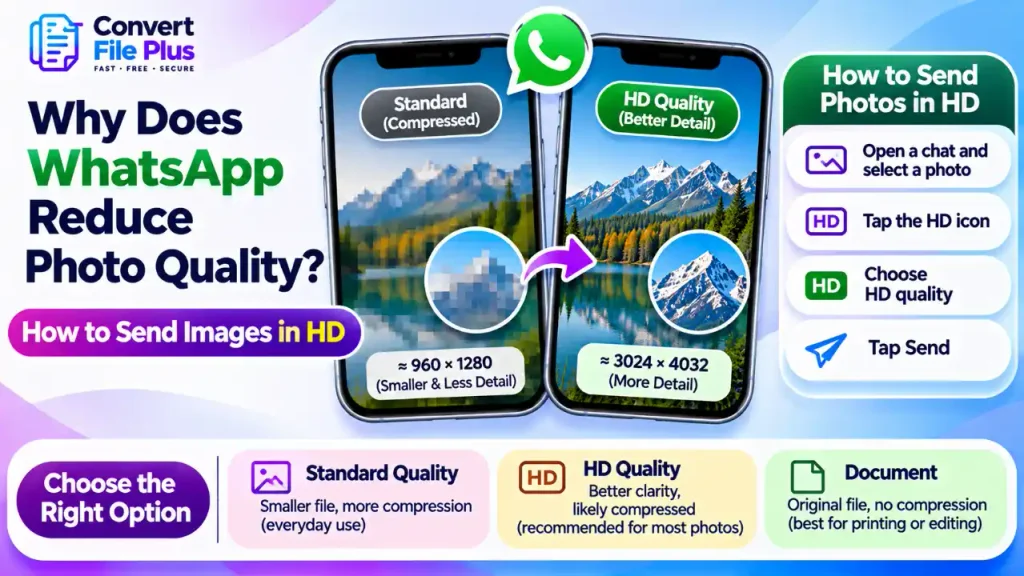
WhatsApp compresses photos by default so they send quickly and use less data. To keep more detail, choose HD quality before sending, or set HD as your default. For the exact original file, send the photo as a document instead.
WhatsApp compresses photos by default to make them quicker to send and download. To preserve more image detail, choose HD quality before sending or set HD as your default. HD still involves compression, so send the photo as a document when you need to preserve the original file.
Why WhatsApp makes your photos look worse
When you send a photo in standard quality, WhatsApp shrinks it before upload. It lowers the pixel dimensions and applies stronger compression, which makes the file much smaller. Smaller files send faster, cost less mobile data and take up less space on the recipient’s phone.
WhatsApp has not published a detailed technical breakdown, so the exact processing is not public. The trade-off is easy to see, though. A phone photo can easily be several megabytes, while a chat-friendly version is a fraction of that.
Here is an illustrative example. One report on WhatsApp’s HD feature describes an iPhone photo of 3024×4032 pixels being reduced to roughly 960×1280 in standard quality, while HD kept the full dimensions. Your phone and settings will produce different numbers, but the pattern is typical: fewer pixels, then compression on top.
You notice it most in these situations:
- Group photos where faces are small
- Photos with text, such as menus or whiteboards
- Zooming in on the received image
- Photos forwarded or saved multiple times, especially when they have been shared as compressed images.
Standard, HD and document: what each one does
WhatsApp gives you three practical routes. They are not equivalent.
| Method | Compression | Resolution | Best for | Trade-off |
|---|---|---|---|---|
| Standard quality | Strongest | Reduced | Quick, casual photos on slow connections | Visible detail loss |
| HD quality | Reduced, not removed | Kept or close to original in most cases | Everyday photos you want to look sharp | Larger files, slower sending |
| Send as document | None applied by WhatsApp | Original file | Printing, editing, product shots | Less convenient, may not show as an inline preview |
Two cautions. HD is not the original: coverage from several outlets notes it is still compressed, so a 10 MB original will usually arrive smaller. And HD is an upload option, so it only helps if you choose it on the sending side.
How to send a photo in HD (one chat at a time)
Menu wording changes between versions, so treat these steps as a guide.
- Open the chat and tap the attachment (plus) button.
- Choose your photo from the gallery.
- Tap the HD icon at the top of the screen.
- Select HD quality and confirm.
- Tap send.
Sent photos carry a small HD badge, which is a quick way to confirm it worked. One reported quirk: if you switch back to standard for a single photo, some versions may revert your preference, so check the badge each time.
How to make HD your default
If you always want sharper photos, set it once:
- Open WhatsApp Settings (on Android, tap the three dots first; on iPhone, use the Settings tab).
- Tap Storage and data.
- Tap Media upload quality.
- Choose HD quality and save.
If you cannot see the option, update WhatsApp and check the media quality settings again. Menu availability and wording can vary by app version and device.
There is also a receiving-side setting, Auto-download quality, under the same menu on recent versions. Reports indicate that when someone sends HD, WhatsApp keeps both a standard and an HD version, so the recipient can choose which to download. Your HD setting does not guarantee the other person sees the HD copy automatically.
How to send the original, uncompressed photo
When you need the file exactly as your camera saved it, send it as a document.
- Open the chat and tap the attachment button.
- Choose Document (or the equivalent file option).
- Browse to the photo in your files or gallery and select it.
- Send.
WhatsApp’s help page lists a 2 GB maximum for documents, which is far beyond any normal photo. Because nothing is resized, the recipient gets the full resolution.
A few practical notes:
- The image may appear as a file rather than an inline picture, and the recipient may need to tap to download it.
- The file can include metadata your camera saved, such as date and, if enabled, location. Remove it first if you do not want to share it.
- If your iPhone saved the photo as HEIC and the recipient’s device cannot open it, converting it to JPG first solves the problem. See ConvertFilePlus’s HEIC to JPG converter for that step. Free usage may be limited per day, so check the tool page for current limits.
When HD still looks bad
If a photo still looks soft after choosing HD, work through these causes before assuming WhatsApp is at fault.
The original was already low quality. WhatsApp cannot add detail that was never captured. Screenshots, photos taken through the front camera in low light, and images saved from social media often start with limited resolution. A related problem happens on Instagram and websites, which ConvertFilePlus covers in why images lose quality when uploaded to websites.
The photo was forwarded or downloaded from another app. If the file has already been compressed once, sending it in HD will not undo that.
A failed or interrupted upload. A weak connection can delay or interrupt media transfers. Retry using a stable connection and check that the recipient receives the complete image.
You are sending to Status or a profile picture. WhatsApp’s help page states HD is not available for status updates or profile pictures.
Converting to PNG will not fix it. Changing a JPG to PNG does not restore lost detail, and it does not stop WhatsApp from processing the image when sent as a photo. Format conversion helps with compatibility, not with undoing compression.
Which method should you choose?
- Everyday chat photos: HD quality. It is a good balance of sharpness and file size.
- Slow or metered connection: Standard, then resend in HD later if the detail matters.
- Printing, editing or client work: Send as a document, or use a link-sharing or cloud service.
- Many photos at once: Documents or a cloud album are usually easier than sending each in HD.
WABetaInfo has reported that WhatsApp is testing a third, original-quality option inside the photo picker. That is beta reporting, not a confirmed release, so do not rely on it yet.
FAQs
The practical takeaway
Turn on HD as your default for normal photos, and reserve document sending for files that must stay exactly as shot. After sending an important image, zoom in on it in the chat to confirm the detail survived. If you are fixing quality problems on other platforms, the related guide on why Instagram photos look blurry after upload covers a similar situation.
Sources and References
- WhatsApp Help Center, how to send media, contacts or location (document limit and HD exclusions): https://whatsapp.com/faq/en/android/23112542
- Android Central, HD photo option and compression note: https://www.androidcentral.com/apps-software/hd-images-in-whatsapp
- 9to5Mac, HD as default and iPhone resolution example: https://9to5mac.com/2024/06/18/whatsapp-set-hd-quality-default/
- TechRadar, HD settings and auto-download quality: https://www.techradar.com/phones/this-whatsapp-setting-will-upgrade-your-photos-and-videos-heres-how-to-use-it
- The Star (dpa), HD versus original file sizes: https://www.thestar.com.my/tech/tech-news/2024/09/11/how-to-send-whatsapp-photos-in-hd
- MacRumors, HD steps on iPhone: https://www.macrumors.com/how-to/send-high-resolution-photos-in-whatsapp/
- WABetaInfo, original-quality option in testing: https://wabetainfo.com/whatsapp-is-testing-original-quality-media-sharing-on-android/

- What Is DPI in an Image? Does It Affect Image Quality on Screen and Print? - November 15, 2026
- Why Does WhatsApp Reduce Photo Quality? How to Send Images in HD - November 11, 2026
- Why Does Instagram Crop My Photos When I Upload Them? How to Fix It - November 9, 2026