
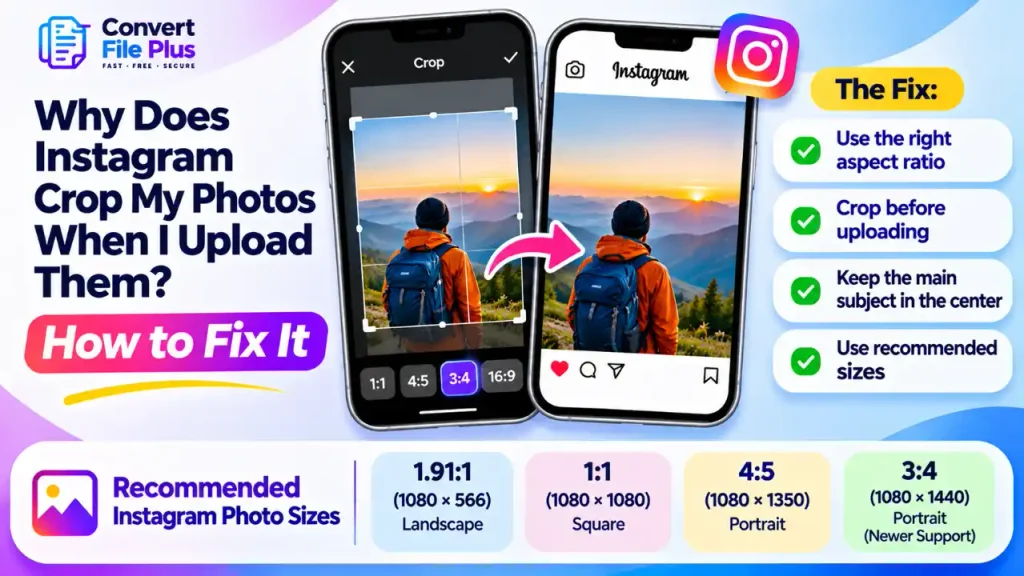
Instagram crops a photo when its shape falls outside what the feed accepts, or when it shows your post as a smaller tile on your profile grid. The fix is to crop the photo yourself before uploading. Use 4:5 (1080 × 1350 pixels) or 3:4 (1080 × 1440 pixels) for portrait photos, and keep the important parts near the centre.
There is more than one kind of crop, and each has a different cause. This guide explains how to tell which one you are seeing, which shape to pick, and how to prepare the file so Instagram has nothing left to cut.
The three different crops people confuse
Most complaints about Instagram cropping describe one of three situations.
- Feed crop. The photo is cut when you upload it. This happens when the shape is outside Instagram’s supported range.
- Profile grid crop. The post looks fine when opened, but the thumbnail on your profile shows only the middle part.
- Other placements. Stories, Reels, carousels and posts made through scheduling tools each have their own rules.
Knowing which one applies saves a lot of guessing. If the full photo shows when you tap the post, you are dealing with a grid crop and the post itself is fine.
Why the feed crops your photo
Aspect ratio is the relationship between a photo’s width and height. A square photo is 1:1. Most phone photos are 4:3 when held sideways, or 3:4 when held upright.
Instagram’s Help Center says that if the aspect ratio of a photo isn’t supported, it will be cropped to fit a supported ratio. The same page says photos are uploaded up to 1080 pixels wide. A larger file is scaled down to that width.
The supported range has changed. For years, 4:5 was Instagram’s tallest standard portrait format. In May 2025, Instagram introduced support for 3:4 photos, allowing common smartphone photos to appear without being cropped. Instagram’s current photo guidance includes aspect ratios from 1.91:1 to 3:4. The dimensions in the table below are calculated examples at 1,080 pixels wide.
| Shape | Pixels at 1080 wide | Where it fits |
|---|---|---|
| Landscape 1.91:1 | 1080 × 566 | The widest feed shape |
| Square 1:1 | 1080 × 1080 | Works well in the feed |
| Portrait 4:5 | 1080 × 1350 | Long-standing portrait limit |
| Portrait 3:4 | 1080 × 1440 | Supported since 2025; matches most phone photos |
| Tall 9:16 | 1080 × 1920 | For Stories and Reels, not standard feed photos |
Two examples show where the problem starts. A 2:1 banner is slightly wider than 1.91:1, so Instagram trims the sides. A tall screenshot from a modern phone is far narrower than 3:4, so a large part of the top and bottom is removed.
Why your profile grid crops it again
In early 2025, Instagram changed the profile grid from squares to taller 3:4 tiles. Every post is now shown in that tile no matter what shape you uploaded. Tapping the post still opens it at the original shape.
Here is what that means in practice, according to several social-media tools that track the change:
- A 3:4 photo fills the tile with nothing removed.
- A 4:5 photo is slightly wider than the 3:4 grid tile, so the thumbnail trims a narrow strip from each side. At 1080 pixels wide, this is roughly 67 pixels in total. The original feed photo remains unchanged.
- Square and landscape photos lose more, because Instagram shows only a centre portion.
Sources disagree on small details, such as whether a square is cropped or padded in the grid. The safest way to know is to look at your own profile after posting.
How to stop Instagram cropping your photos
- Find the original file. Use the photo from your camera roll, not a screenshot or a copy sent through a chat app. Those are often smaller and already compressed.
- Pick a target shape. For an upright phone photo, 3:4 keeps the whole frame. If you want to be careful about older app versions or scheduling tools, 4:5 is the widely supported choice.
- Crop before you upload. Open your phone’s photo editor, choose the crop tool and select 3:4 or 4:5. Drag the frame so the subject sits inside it.
- Keep the subject near the middle. This protects it from the grid tile’s centre crop. Faces, text and logos should stay clear of the left and right edges.
- Check the pixel size. A width of 1080 pixels or more is enough. Don’t enlarge a small photo to reach it, because more pixels do not add detail.
- Upload and then preview. Open the finished post and your profile grid. If something important is trimmed in the grid, re-crop and post again.
Carousels, Stories, Reels and scheduling tools
Carousels. Instagram’s Help Center is reported to apply one orientation to every slide, and secondary guides say mixed shapes lead to cropping. Crop all slides to the same ratio before you start. The first slide is also what appears in the grid.
Stories. A Story fills a 9:16 screen, so a photo in another shape is enlarged or cropped to fill it. Our guide to uploading high-quality pictures to an Instagram Story covers that case.
Reels. The video fills a 9:16 frame, but the profile grid shows the cover at 3:4. Keep titles and faces in the middle of the cover.
Scheduling tools. Some scheduling tools publish through Meta’s API, which may have different aspect-ratio limits from the Instagram app. For example, API-based publishing specifications can restrict portrait photos to 4:5 even when the app accepts 3:4. Check the specific tool’s current requirements before preparing your images. If it does not support 3:4, use 4:5 instead.
Common mistakes
- Fixing the wrong crop. Re-cropping a photo that is fine in the feed will not change the grid tile. Check which one is affected first.
- Using a screenshot of a photo. The shape and size are set by your screen, not by the photo.
- Pinching to zoom in the upload screen. Zooming keeps fewer pixels and can soften the image. Crop in your editor instead.
- Putting text at the very edge. A thin strip trimmed from each side can cut off a letter or logo.
- Mixing shapes in a carousel. One tall slide beside a wide one usually leads to a trimmed slide.
Resizing outside Instagram
If the file is very large or in a format your editor won’t open, resizing it first can help. The ConvertFilePlus image converter has a Resize option where you enter a width and height for each image. It also lists a 50 MB limit per file and a daily limit on free conversions. It has no Instagram preset, so you would type the numbers yourself.
Do the crop first in a photo editor, then resize. Entering a width and height that don’t match the cropped shape can stretch the picture. We could not confirm that the tool crops images, so use your editor for that step.
What fixing the crop will not do
A correct shape stops Instagram from cutting your photo. It won’t fix a photo that looks soft after upload, because that is a separate problem with resolution and compression. If your picture is cropped correctly but still looks blurry, read our guide on why images look blurry on Instagram after uploading. To read the numbers on a file, see the difference between image resolution and image size.
Frequently asked questions
Final recommendation
Decide the shape before you upload. If the photo is an upright phone shot, try 3:4 and check how it looks in the feed and on your grid. If anything important is trimmed, re-crop to 4:5 and keep the subject near the centre. One preview after posting is the quickest way to confirm the result.
Sources and References
- Instagram Help Center, Image resolution of photos you share on Instagram: https://help.instagram.com/1631821640426723
- BetaNews, Instagram announces support for the most commonly used photo aspect ratio (report of Adam Mosseri’s Threads post): https://betanews.com/2025/05/30/instagram-announces-support-for-the-most-commonly-used-photo-aspect-ratio
- 9to5Mac, No more cropping: Instagram changes standard photo aspect ratio: https://9to5mac.com/2025/05/29/instagram-changes-standard-photo-aspect-ratio/
- Planoly, A Complete Guide to Instagram’s New Vertical Grid: https://planoly.com/blog/guide-to-instagrams-new-vertical-grid
- Hootsuite, Social media image sizes for all networks: https://blog.hootsuite.com/social-media-image-sizes-guide/
- PostEverywhere, Instagram Aspect Ratios & Sizes: https://posteverywhere.ai/blog/instagram-aspect-ratios

- What Is DPI in an Image? Does It Affect Image Quality on Screen and Print? - November 15, 2026
- Why Does WhatsApp Reduce Photo Quality? How to Send Images in HD - November 11, 2026
- Why Does Instagram Crop My Photos When I Upload Them? How to Fix It - November 9, 2026