
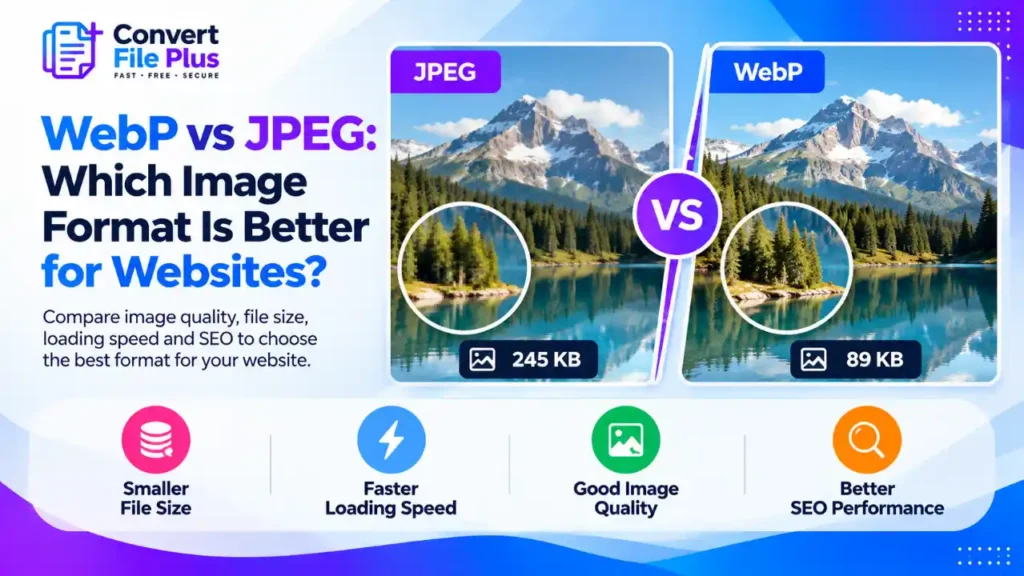
Are your website images slowing down your pages or taking up more storage than necessary? Choosing between WebP and JPEG can help reduce image file sizes, but switching formats alone does not guarantee better website performance.
WebP often delivers smaller files at similar visual quality, while JPEG remains useful for compatibility with older software, email workflows, and print. This guide compares both formats so you can choose the right option without sacrificing image quality or disrupting existing workflows.
The Short Answer
For most websites, WebP is a strong choice when you want smaller image files without a noticeable loss in visual quality. JPEG remains useful when compatibility with other software, email workflows, or print services matters.
Before switching, compare the file size and visual quality of both formats using your own images.
What the “25–34% Smaller” Claim Actually Means
The figure you will see everywhere comes from Google. Google reports that lossy WebP images are 25–34% smaller than comparable JPEG images at an equivalent SSIM quality index. SSIM is a way of measuring how similar a compressed image is to its source. google
Three details matter:
- It is an average across test sets, not a promise for your photo. In Google’s tables, the WebP-to-JPEG size ratios ranged from about 0.66 to 0.75, depending on the image set and quality level.
- It was measured by an algorithm, not by eye. SSIM correlates with perceived quality but is not the same as it. Your own check at full size is still necessary.
- It is a vendor study. WebP was created by Google, so treat the number as a useful benchmark rather than independent proof.
One more practical point: converting an existing JPEG to lossy WebP means compressing already-compressed pixels. The result may be smaller, but it cannot recover detail the JPEG already threw away. Savings are usually better when you convert from an original or high-quality source.
WebP vs JPEG: A Practical Comparison
| Factor | JPEG | WebP |
| File size for photos | Larger at similar quality, on average | Often smaller; varies by image and settings |
| Compression modes | Lossy | Lossy and lossless |
| Transparency | No | Yes, in both modes |
| Animation | No | Yes |
| Browser support | Universal | Current versions of the major browsers |
| Software and upload support | Nearly everything | Most modern tools; some older apps and forms reject it |
| Chroma handling | Encoders commonly offer several options | Lossy WebP is limited to 4:2:0 |
| Best for | Email, print, universal sharing | Website delivery |
The chroma row rarely matters for ordinary photos. It can matter for images with fine, saturated color detail, such as red text on a contrasting background, where color edges can look softer.
Browser Support: Is Compatibility Still a Problem?
For websites, it is a small problem. WebP is supported by current versions of major browsers, but compatibility can still vary in older software and non-browser workflows. Before removing JPEG versions entirely, check your audience’s browser requirements and the image formats accepted by the platforms where you use your files.
For browser compatibility details, consult the Can I Use WebP support table and Google’s WebP documentation.
Check your own analytics before dropping JPEG entirely. The real compatibility risk today is outside the browser: image editors, email clients, marketplaces, print shops, and upload forms that only accept JPG or PNG.
Will WebP Make Your Website Faster?
WebP can improve image delivery by reducing the amount of data visitors need to download. However, the effect on total page speed depends on how your website loads its images and other resources.
- Oversized images: Resize images to match their display dimensions before converting them.
- Delayed hero images: Check whether the main above-the-fold image is discovered and loaded promptly. Avoid lazy-loading the page’s likely Largest Contentful Paint (LCP) image.
- Image-heavy pages: Smaller image files may be particularly useful when visitors load multiple images over mobile connections.
- Other performance issues: Slow server responses, render-blocking resources, and JavaScript can also affect page loading.
Use PageSpeed Insights before and after making changes to see whether your page actually improves.
Why Is My Website Still Slow After Converting Images to WebP?
Converting JPEG images to WebP may reduce file sizes, but your website can remain slow for other reasons.
Check these common issues:
- Images are still too large: An image displayed at 800 pixels wide may not need to be uploaded at 4,000 pixels wide.
- The main image loads late: Check whether the browser discovers the hero image promptly and whether it is being lazy-loaded incorrectly.
- Too many images load at once: Consider lazy-loading images that appear below the initial viewport.
- Other resources are slowing the page: Server response time, JavaScript, CSS, and third-party scripts can also affect performance.
Test your page with PageSpeed Insights before and after optimizing images. Compare the results rather than assuming that changing the format alone will fix the problem.
Does WebP Help SEO?
Not directly, as far as the documentation shows. Google’s image guidance lists WebP as a supported format, and it works in Google Images. I found no Google statement that using WebP by itself improves rankings.
What WebP can do is help you build faster pages, which supports a better experience for visitors. Treat that as an indirect benefit and measure it. Descriptive filenames, useful alt text, and relevant surrounding content matter more to image search than the file format.
How to Publish WebP Safely
The standard method is the <picture> element, which Google’s own documentation recommends for new formats:
html
<picture>
  <source type="image/webp" srcset="mountain-lake.webp">
  <img src="mountain-lake.jpg" alt="Mountain lake at sunrise">
</picture>
Browsers that understand WebP use the first source. Others fall back to the JPEG in the <img> tag. Always keep that <img> element with a supported format, because Google’s documentation says to provide one with a src attribute.
On WordPress, current versions accept WebP uploads, provided your host’s image library supports the format. If an upload fails, ask your host before troubleshooting the file.
Test It on Your Own Images Before Committing
You do not need a large project to find out whether the switch is worthwhile for your site.
- Pick five to ten typical images: a hero photo, a product shot, a screenshot, and a few blog images.
- Start from the originals where possible, not from heavily compressed copies.
- Resize first. An image displayed at 800 pixels wide should not be a 4,000-pixel file in either format.
- Convert at two or three quality settings and note the file sizes.
- Compare at 100% zoom. Look at sky gradients, text edges, skin tones, and fine textures.
- Compare against a well-compressed JPEG, not just your current one. Sometimes a properly optimized JPEG closes much of the gap.
- Measure the page before and after with Lighthouse or PageSpeed Insights, focusing on the LCP image.
If WebP wins clearly on size and looks the same, roll it out. If gains are small on certain images, leave those as JPEG.
Common Mistakes
- Renaming .jpg to .webp. This changes the label, not the file. Run a real conversion.
- Converting low-quality JPEGs and expecting improvement. Blocky source images stay blocky.
- Setting quality too low. Blotchy skies and smeared textures are the usual sign. Raise the quality and reconvert from the original.
- Deleting the originals. You will want them for future formats, print, or re-editing.
- Skipping the fallback on sites that must support older browsers or apps.
- Assuming smaller means faster. Measure the page, not just the file.
Frequently Asked Questions
Conclusion
WebP is often the better choice for website images when it reduces file size without visibly affecting quality. JPEG remains useful when compatibility is important. Test both formats on your own images, then measure page performance before deciding which format to use.
To try one, the ConvertFilePlus JPG to WebP converter lets you convert an image in your browser so you can compare the size and quality with the original. Check the tool page for current usage limits. For the full workflow, see our guide to converting JPG to WebP for faster website loading, and for other formats, read how to choose the right image format. To find where your page loses time, start with how image compression affects website performance.

- Why Is My Instagram Picture Blurry Before Posting? - November 2, 2026
- Why Do Images Look Blurry on Instagram After Uploading? How to Fix It - November 1, 2026
- Why Do Images Look Different on Different Screens? - October 31, 2026